2D Actions

Setup guidance and the complete action reference organized exactly like the 2D right-click menu.

◷ 38 min read Phase 5 enhanced
Guidance panels
Source of truth This page lists only bricks registered by the uploaded addon. Legacy aliases and compatibility script shims are not presented as separate menu entries.
Chapter guide

Building 2D actions

These actions are grouped exactly like the 2D right-click menu and use 2D node types and Vector2-based values where appropriate.

  1. Select a supported 2D node.
  2. Choose the matching right-click submenu.
  3. Verify the target node and coordinate values before adding more logic.
2D WORKFLOW

2D Setup and Actions

Use this section for Node2D-based scenes. The documentation categories below mirror the action submenus displayed when a supported 2D node is selected.

1

Select a 2D node

Select a Node2D, CharacterBody2D, RigidBody2D, Camera2D, AnimatedSprite2D, or another supported 2D node.

2

Open Logic Bricks

The editor switches to the 2D brick domain and shows common bricks together with compatible 2D-specific bricks.

3

Use 2D values

Position and movement use Vector2 values. Rotation is expressed around the 2D axis, and 2D camera actions target Camera2D nodes.

4

Choose by submenu

Use the category links below to jump to the same submenu organization used by the right-click menu.

How this relates to the menu

The 2D menu substitutes its own Sprite Animation and Tween Animation bricks for incompatible generic animation entries.

RIGHT-CLICK SUBMENU

Animation

Right-click → Actions → Animation

action • 2d

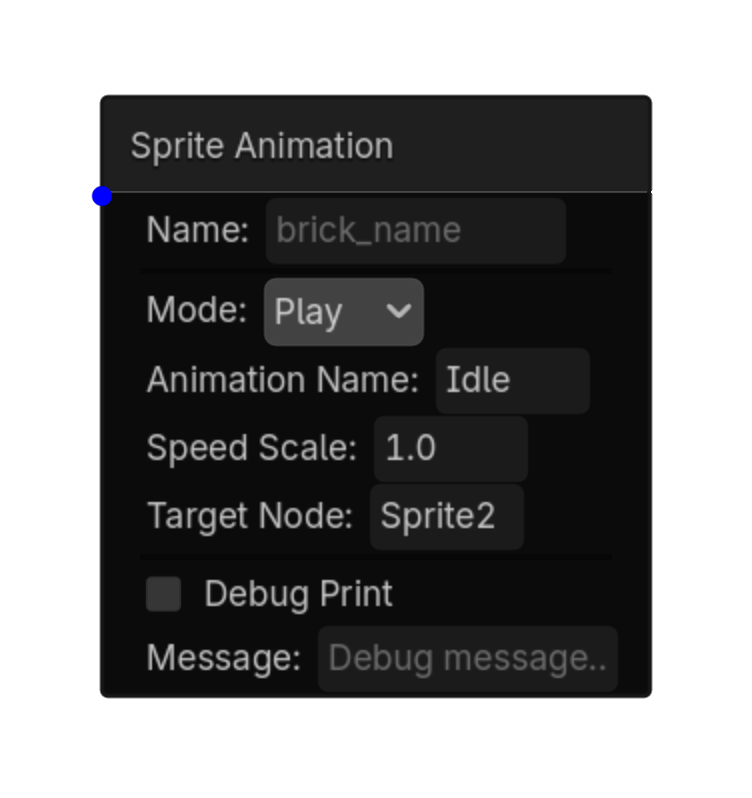
Sprite Animation

2D

Play, stop, or pause AnimatedSprite2D animations.

Menu Add Logic Brick → Actions → Animation

Options

Property Details
mode Mode
Choices: Play,Stop,Pause
Default: play
animation_name Animation Name
speed_scale Speed Scale
Default: 1.0
target_node Target Node
Using this brick

Typical uses

  • Perform the animation action described above after a trigger / gate chain succeeds.
  • Reuse the brick in multiple states or chains with different option values.
  • Target a specific node by configuring the node field before testing the chain.

Example chain

Choose a trigger Gate Sprite Animation
Tip Confirm the target node name and node type before troubleshooting the rest of the chain.
Common mistake A continuously active trigger may run this action every frame. Use a one-shot condition when the action should happen only once.
Sprite Animation screenshot placeholder
Sprite Animation screenshot
action • 2d

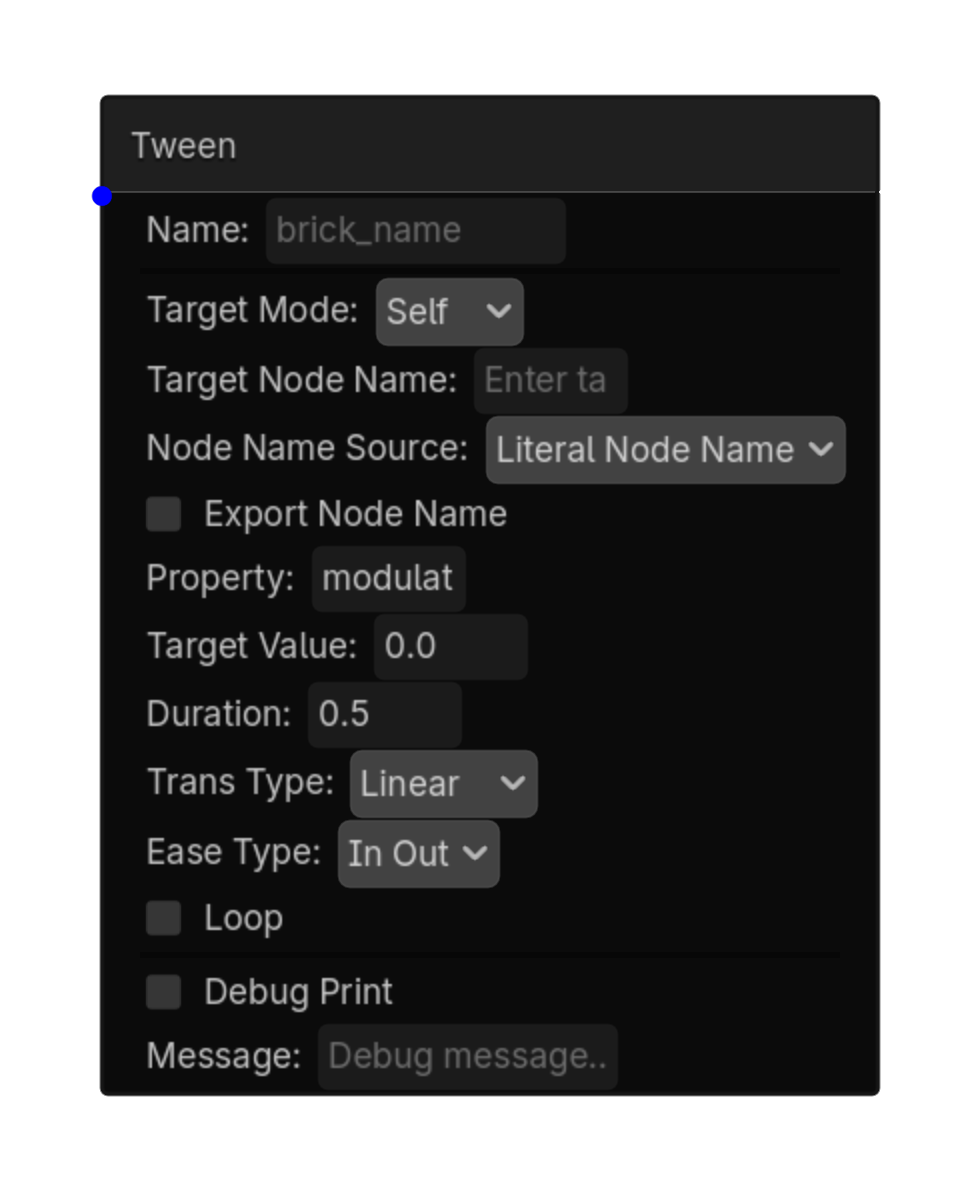
Tween

2D

Smoothly changes a 2D property such as position, rotation, scale, or modulate over time.

Menu Add Logic Brick → Actions → Animation

This brick exposes no configurable properties.
Using this brick

Typical uses

  • Perform the animation action described above after a trigger/gate chain succeeds.
  • Reuse the brick in multiple states or chains with different option values.
  • Pair it with an appropriate trigger to control when the action occurs.

Example chain

Choose a trigger Gate Tween
Tip Test the action with the simplest possible trigger first, then add variables, timing, or additional conditions.
Common mistake A continuously active trigger may run this action every frame. Use a one-shot condition when the action should happen only once.
Tween action screenshot
Tween screenshot
RIGHT-CLICK SUBMENU

Audio

Right-click → Actions → Audio

action • shared

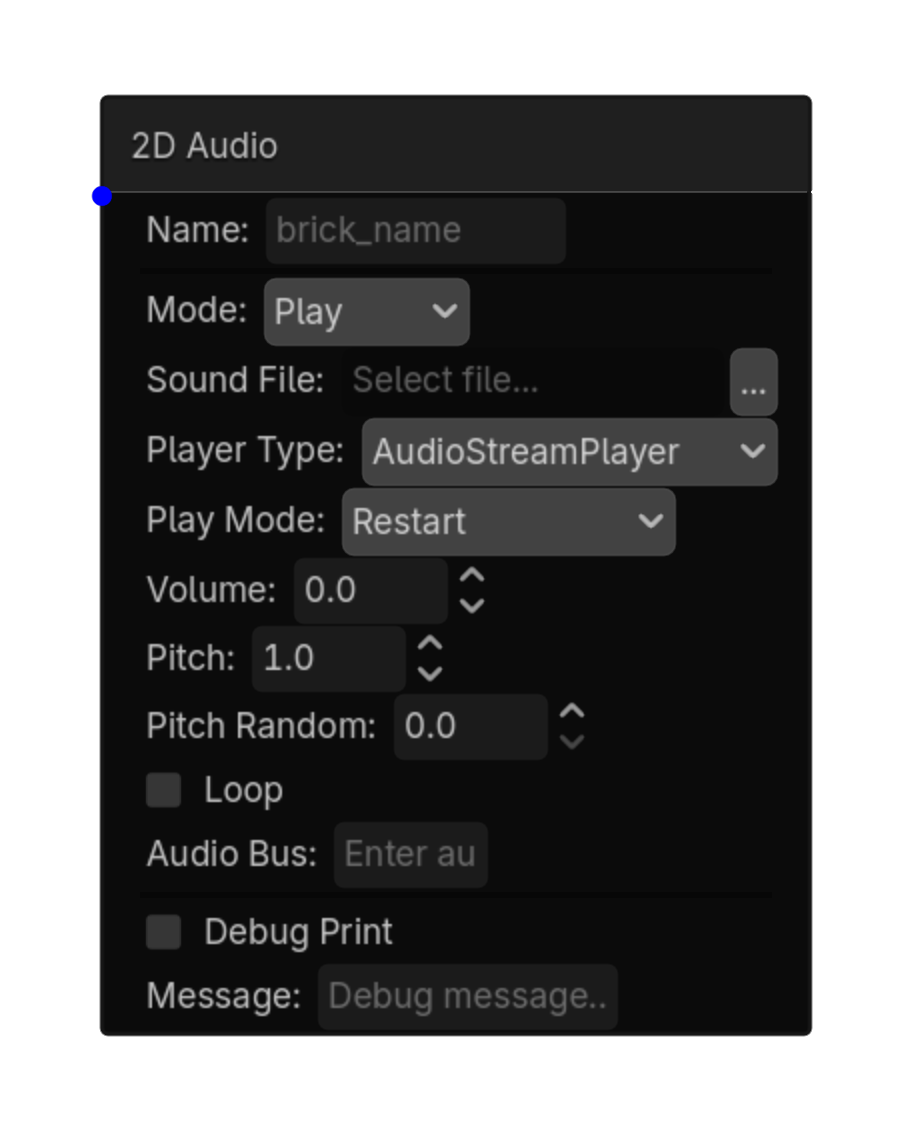
2D Audio

2D

Play 2D or UI audio from a file.

Menu Add Logic Brick → Actions → Audio

Options

Property Details
mode Mode
Choices: Play,Stop,Pause,Fade In,Fade Out
Default: play
sound_file Sound File
Choices: *.wav,*.ogg,*.mp3
player_type Player Type
Choices: AudioStreamPlayer,AudioStreamPlayer2D
Default: stream_player
play_mode Play Mode
Choices: Restart,Overlap,Ignore If Playing
Default: restart
volume Volume
Choices: -80,24,0.1
Default: 0.0
pitch Pitch
Choices: 0.01,4.0,0.01
Default: 1.0
pitch_random Pitch Random
Choices: 0.0,1.0,0.01
Default: 0.0
loop Loop
Default: false
audio_bus Audio Bus
fade_duration Fade Duration
Choices: 0.1,10.0,0.1
Default: 1.0
Using this brick

Typical uses

  • Perform the audio action described above after a trigger/gate chain succeeds.
  • Reuse the brick in multiple states or chains with different option values.
  • Pair it with an appropriate trigger to control when the action occurs.

Example chain

Choose a trigger Gate 2D Audio
Tip Test the action with the simplest possible trigger first, then add variables, timing, or additional conditions.
Common mistake A continuously active trigger may run this action every frame. Use a one-shot condition when the action should happen only once.
2D Audio screenshot placeholder
2D Audio screenshot
action • shared

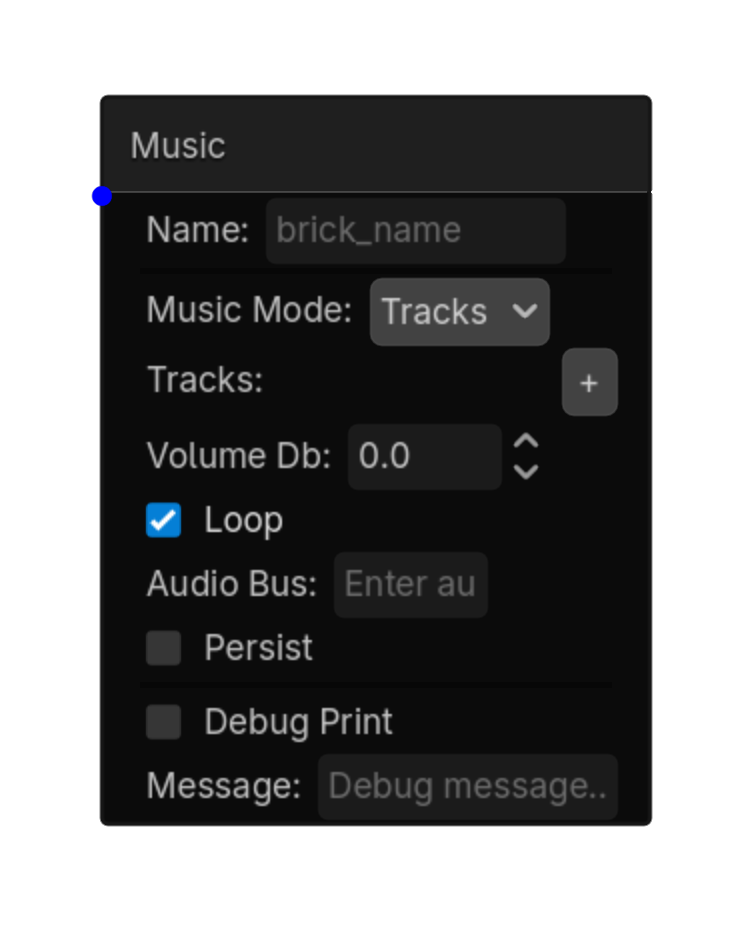
Music

2D

Three modes:\nTracks: define and create music players at startup.\nSet: set which track is current (and optionally play it).\nControl: play, stop, pause, resume, or crossfade from current to another track.

Menu Add Logic Brick → Actions → Audio

Options

Property Details
music_mode Music Mode
Choices: Tracks,Set,Control
Default: tracks
tracks Tracks
Default: []
volume_db Volume Db
Choices: -80,24,0.1
Default: 0.0
loop Loop
Default: true
audio_bus Audio Bus
persist Persist
Default: false
set_track Set Track
Default: 0
set_play Set Play
Default: true
control_action Control Action
Choices: Play,Stop,Pause,Resume,Crossfade
Default: play
to_track To Track
Default: 1
crossfade_time Crossfade Time
Choices: 0.1,10.0,0.1
Default: 1.0
Using this brick

Typical uses

  • Perform the general action described above after a trigger/gate chain succeeds.
  • Reuse the brick in multiple states or chains with different option values.
  • Pair it with an appropriate trigger to control when the action occurs.

Example chain

Choose a trigger Gate Music
Tip Test the action with the simplest possible trigger first, then add variables, timing, or additional conditions.
Common mistake A continuously active trigger may run this action every frame. Use a one-shot condition when the action should happen only once.
Music screenshot placeholder
Music screenshot
RIGHT-CLICK SUBMENU

Camera

Right-click → Actions → Camera

action • 2d

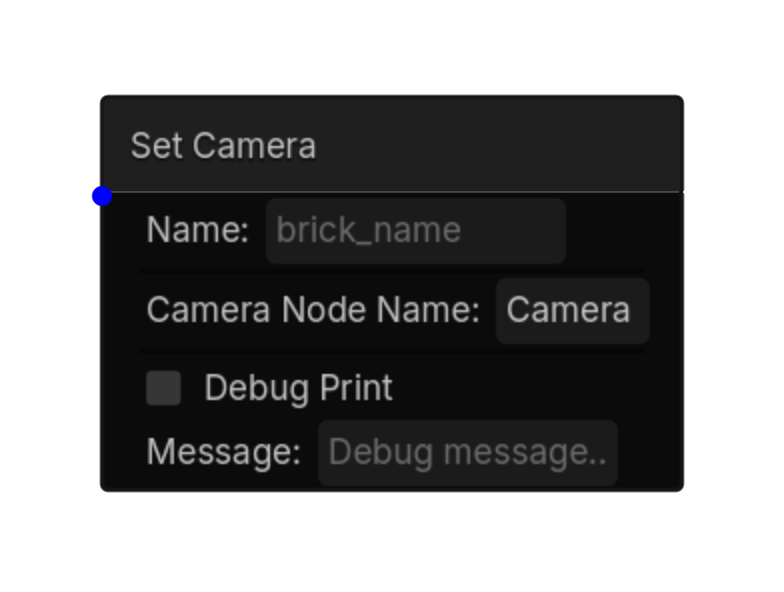
Set Camera

2D

Makes the named Camera2D active for the current viewport. Use a one-shot trigger when possible so make_current() is not called every frame.

Menu Add Logic Brick → Actions → Camera

Options

Property Details
camera_node_name Camera2D node name. Default: Camera2D. Use the scene node picker.
Using this brick

Typical uses

  • Perform the general action described above after a trigger/gate chain succeeds.
  • Reuse the brick in multiple states or chains with different option values.
  • Target a specific node by configuring the node field before testing the chain.

Example chain

Choose a trigger Gate Set Camera
Tip Confirm the target node name and node type before troubleshooting the rest of the chain.
Common mistake A continuously active trigger may run this action every frame. Use a one-shot condition when the action should happen only once.
Set Camera screenshot placeholder
Set Camera screenshot
action • 2d

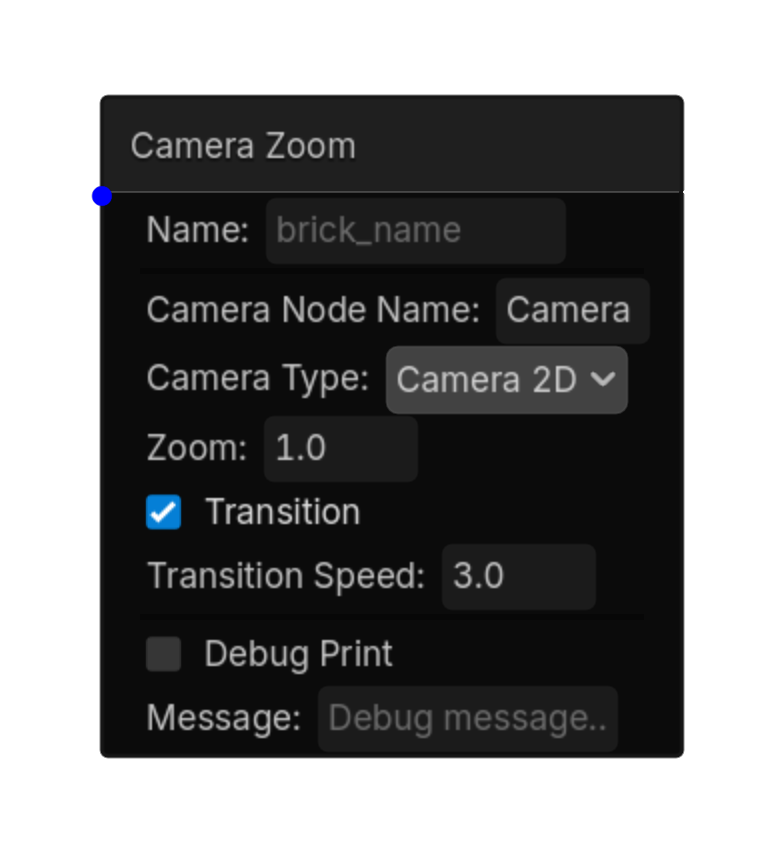
Camera Zoom

2D

Changes Camera2D zoom. 1.0 = normal, 2.0 = zoomed in, 0.5 = zoomed out.

Menu Add Logic Brick → Actions → Camera

Options

Property Details
camera_node_name Camera2D node name. Default: Camera2D. Use the scene node picker.
camera_type Camera Type
Choices: Camera 3D,Camera 2D
Default: camera_3d
fov Fov
Default: 75.0
zoom Zoom
Default: 1.0
transition Transition
Default: true
transition_speed Transition Speed
Default: 3.0
Using this brick

Typical uses

  • Perform the general action described above after a trigger/gate chain succeeds.
  • Reuse the brick in multiple states or chains with different option values.
  • Target a specific node by configuring the node field before testing the chain.

Example chain

Choose a trigger Gate Camera Zoom
Tip Confirm the target node name and node type before troubleshooting the rest of the chain.
Common mistake Timing options change how long the action takes; avoid retriggering the same transition every frame unless that behavior is intentional.
Camera Zoom screenshot placeholder
Camera Zoom screenshot
action • 2d

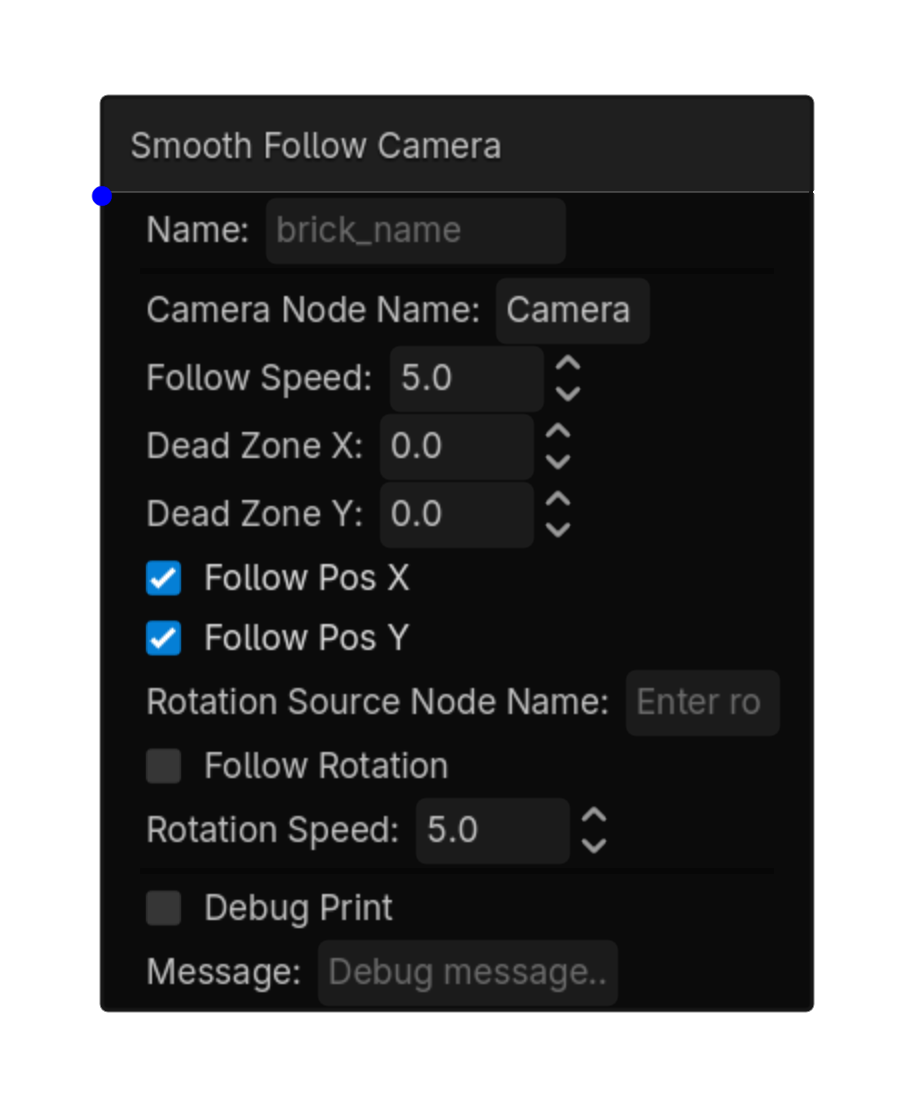
Smooth Follow Camera

2D

Smoothly follows this Node2D with the named Camera2D while maintaining the camera's initial offset from the target.

Menu Add Logic Brick → Actions → Camera

Options

Property Details
camera_node_name Camera2D node name. Default: Camera2D. Use the scene node picker.
follow_speed Follow Speed
Default: 5.0
dead_zone_x Dead Zone X
Default: 0.0
dead_zone_y Dead Zone Y
Default: 0.0
dead_zone_z Dead Zone Z
Default: 0.0
follow_pos_x Follow Pos X
Default: true
follow_pos_y Follow Pos Y
Default: true
follow_pos_z Follow Pos Z
Default: true
rotation_source_node_name Rotation Source Node Name
Rotation source node name (blank = self)
follow_rot_x Follow Rot X
Default: false
follow_rot_y Follow Rot Y
Default: false
follow_rot_z Follow Rot Z
Default: false
rotation_speed Rotation Speed
Default: 5.0
Using this brick

Typical uses

  • Perform the general action described above after a trigger/gate chain succeeds.
  • Reuse the brick in multiple states or chains with different option values.
  • Target a specific node by configuring the node field before testing the chain.

Example chain

Choose a trigger Gate Smooth Follow Camera
Tip Confirm the target node name and node type before troubleshooting the rest of the chain.
Common mistake A continuously active trigger may run this action every frame. Use a one-shot condition when the action should happen only once.
Smooth Follow Camera screenshot placeholder
Smooth Follow Camera screenshot
action • 2d

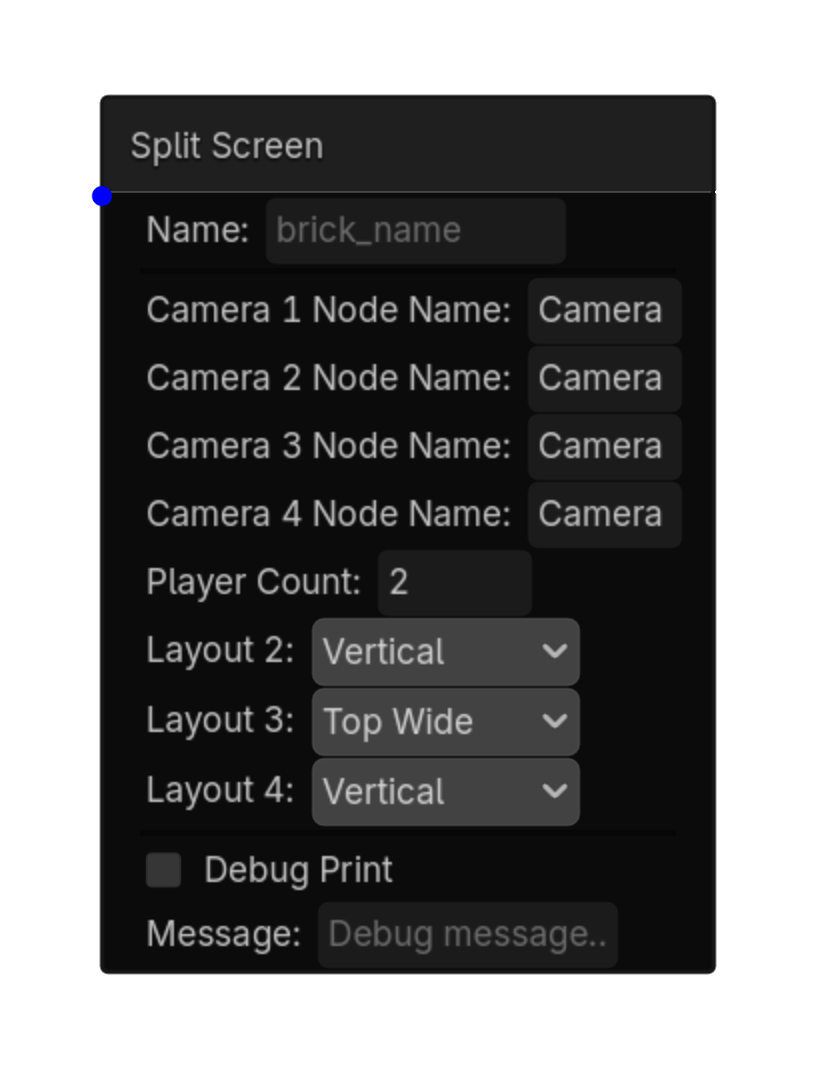
Split Screen

2D

Creates a two-player 2D split-screen view using two Camera2D nodes and isolated SubViewports.

MenuAdd Logic Brick → Actions → Camera

Options

PropertyDetails
camera_1_node_nameFirst Camera2D node name. Default: Camera2D
camera_2_node_nameSecond Camera2D node name. Default: Camera2D2
layoutScreen division: Vertical or Horizontal. Default: Vertical
Using this brick

Typical uses

  • Run Split Screen after a trigger and gate chain succeeds.
  • Combine it with states to enable the behavior only during the appropriate gameplay mode.

Example chain

TriggerGateSplit Screen
TipBoth camera names must resolve to Camera2D nodes in the active scene.
Common mistakeDo not place the split-screen display on a canvas layer rendered by its own SubViewports; the action excludes its display layer automatically.
Split Screen action screenshot
Split Screen screenshot
RIGHT-CLICK SUBMENU

Game

Right-click → Actions → Game

action • shared

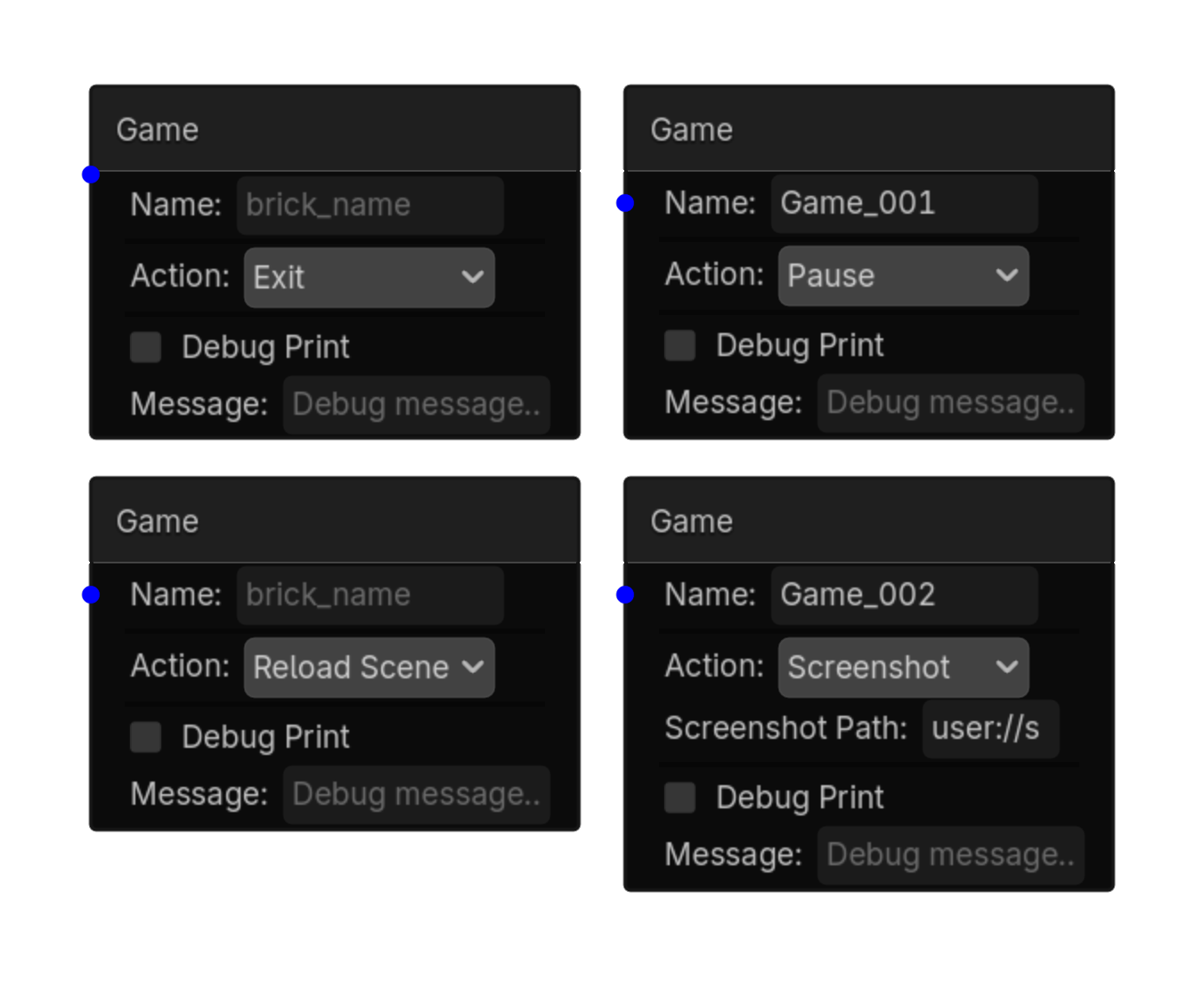
Game

2D

Controls game flow: exit, reload the scene, pause, unpause, toggle pause, or save a screenshot.

Menu Add Logic Brick → Actions → Game

Options

Property Details
action Exit, Reload Scene, Pause, Unpause, Toggle Pause, or Screenshot. Default: Exit.
screenshot_path Screenshot Path
Default: user://screenshot.png
Using this brick

Typical uses

  • Perform the general action described above after a trigger/gate chain succeeds.
  • Reuse the brick in multiple states or chains with different option values.
  • Pair it with an appropriate trigger to control when the action occurs.

Example chain

Choose a trigger Gate Game
Tip Test the action with the simplest possible trigger first, then add variables, timing, or additional conditions.
Common mistake A continuously active trigger may run this action every frame. Use a one-shot condition when the action should happen only once.
Pause controls Unpause and Toggle Pause are generated with pause-safe input handling so they can resume a paused SceneTree. Use a one-shot input such as Just Pressed for toggles.
Game screenshot placeholder
Game screenshot
action • shared

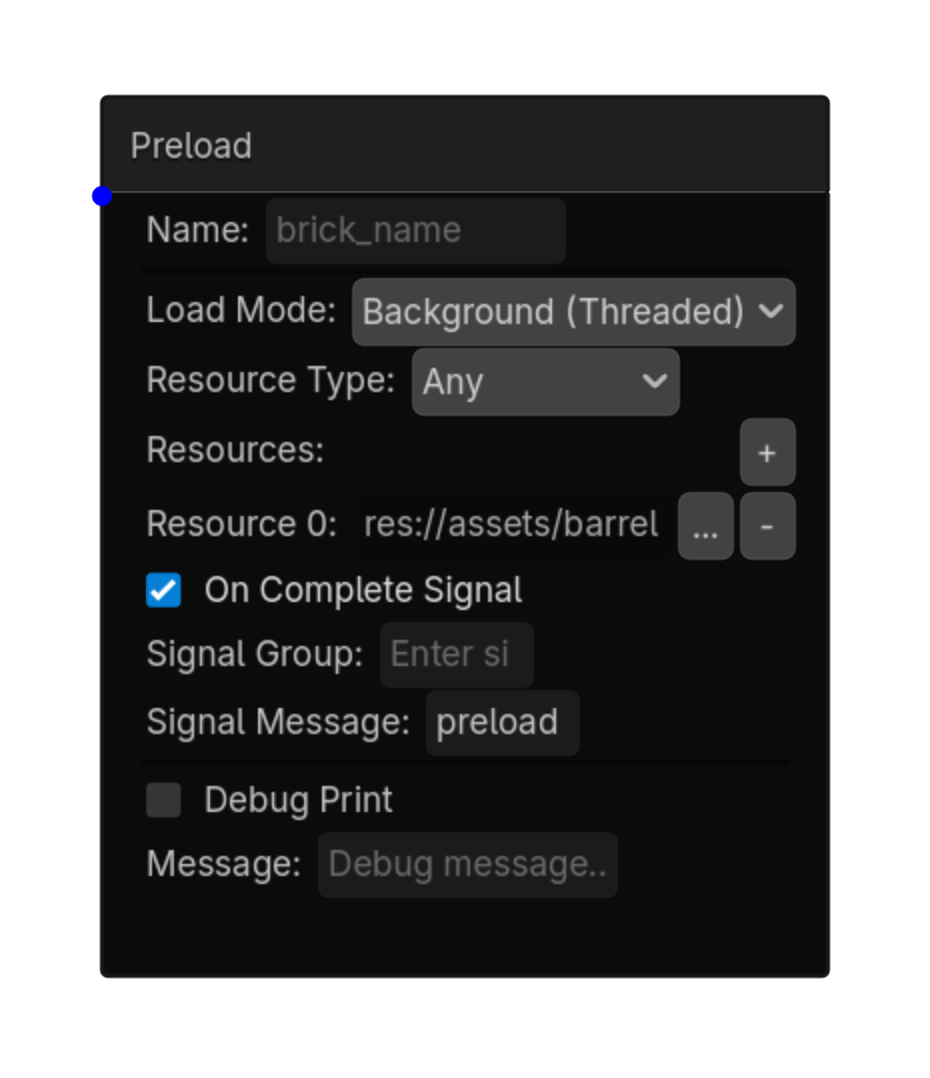
Preload

2D

Preloads resources (materials, scenes, textures, audio, meshes) into memory before they are needed, preventing runtime hitches and frame drops.

Menu Add Logic Brick → Actions → Game

Options

Property Details
load_mode Load Mode
Choices: Background (Threaded),Immediate (Blocking)
Default: background
resource_type Resource Type
Choices: Any,Scene,Material,Texture,AudioStream,Mesh,Shader
Default: Any
resources Resources
Default: []
on_complete_signal On Complete Signal
Default: true
signal_group Signal Group
signal_message Signal Message
Default: preload_done
Using this brick

Typical uses

  • Perform the general action described above after a trigger/gate chain succeeds.
  • Reuse the brick in multiple states or chains with different option values.
  • Pair it with an appropriate trigger to control when the action occurs.

Example chain

Choose a trigger Gate Preload
Tip Test the action with the simplest possible trigger first, then add variables, timing, or additional conditions.
Common mistake A continuously active trigger may run this action every frame. Use a one-shot condition when the action should happen only once.
Preload screenshot placeholder
Preload screenshot
action • shared

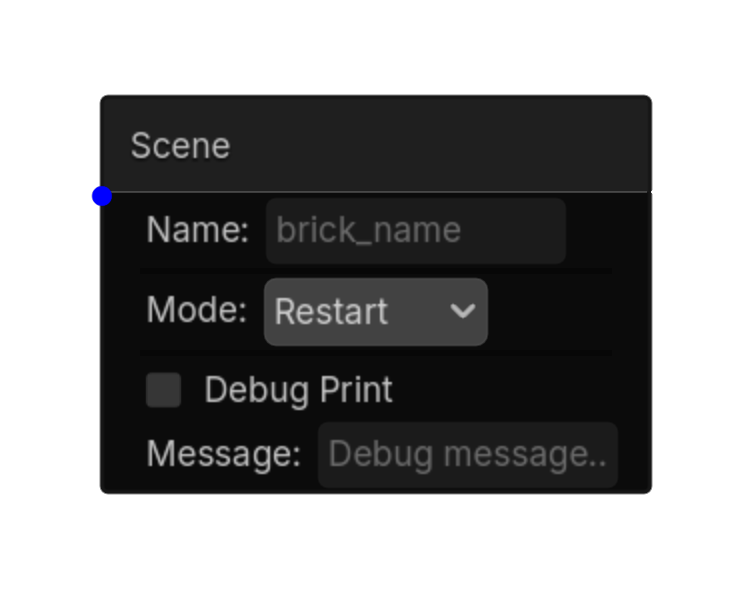
Scene

2D

Similar to UPBGE's Scene action

Menu Add Logic Brick → Actions → Game

Options

Property Details
mode Mode
Choices: Restart,Set Scene
Default: restart
scene_path Scene Path
Choices: *.tscn,*.scn
Using this brick

Typical uses

  • Perform the general action described above after a trigger/gate chain succeeds.
  • Reuse the brick in multiple states or chains with different option values.
  • Pair it with an appropriate trigger to control when the action occurs.

Example chain

Choose a trigger Gate Scene
Tip Test the action with the simplest possible trigger first, then add variables, timing, or additional conditions.
Common mistake A continuously active trigger may run this action every frame. Use a one-shot condition when the action should happen only once.
Scene screenshot placeholder
Scene screenshot
action • 2d

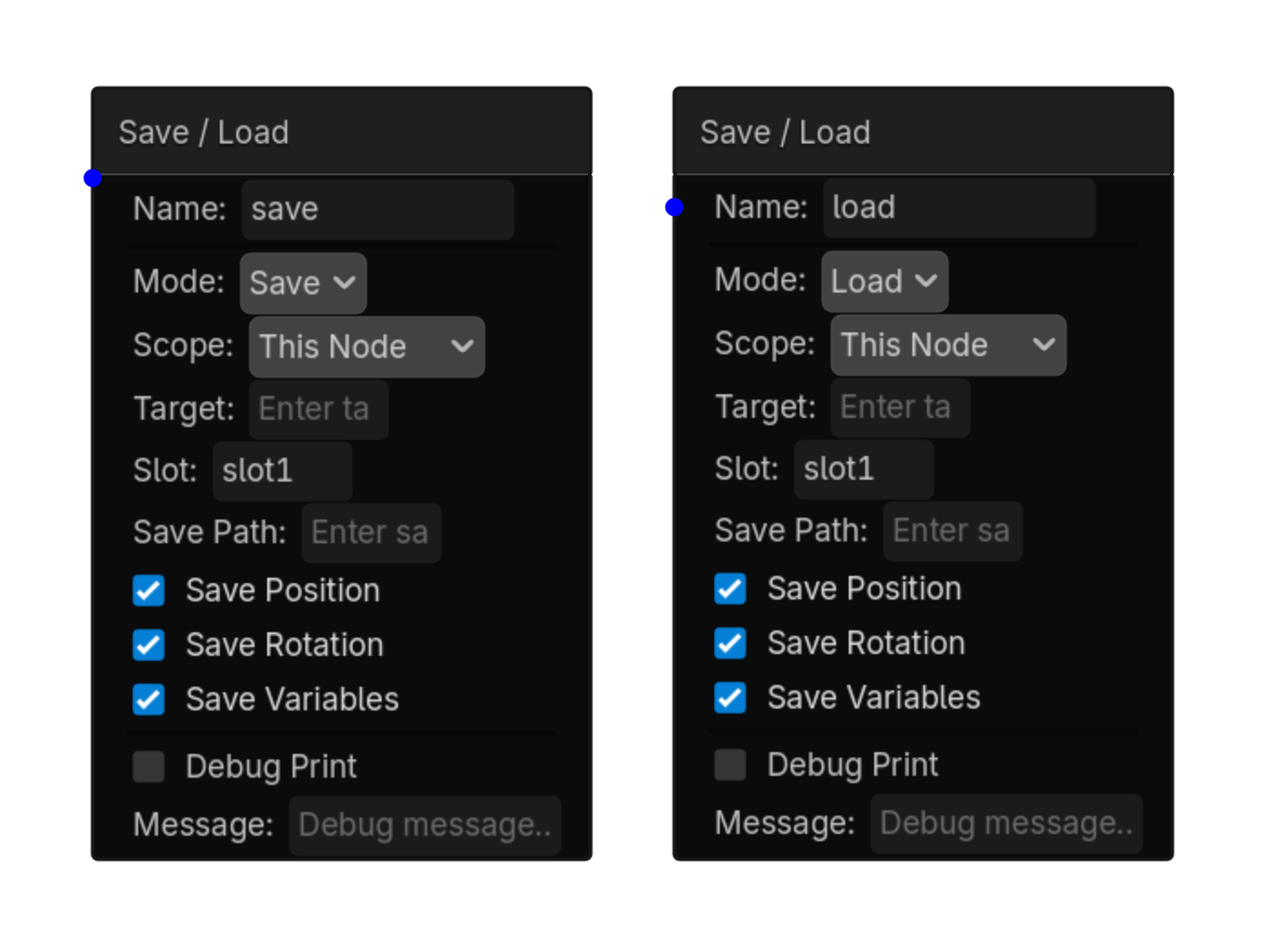
Save / Load

2D

Saves or restores 2D transforms, selected script variables, and optional RigidBody2D motion state.

MenuAdd Logic Brick → Actions → Game

Options

PropertyDetails
modeChoose Save or Load.
scopeThis Node, Target Node, or Group.
targetNode name or group used by the selected scope.
slotSave-slot filename. Default: slot1
save_positionInclude global position.
save_rotationInclude global rotation.
save_variablesInclude supported script variables.
restore_velocityWhen loading a RigidBody2D, restore saved velocity instead of stopping at the loaded transform.
Using this brick

Typical uses

  • Run Save / Load after a trigger and gate chain succeeds.
  • Combine it with states to enable the behavior only during the appropriate gameplay mode.

Example chain

TriggerGateSave / Load
TipLeave Restore Velocity disabled when loading should place a physics body at rest.
Common mistakeA target path must still exist when loading; renamed or reparented nodes may not match an older save file.
Save / Load action screenshot
Save / Load screenshot
RIGHT-CLICK SUBMENU

Game Feel

Right-click → Actions → Game Feel

action • 2d

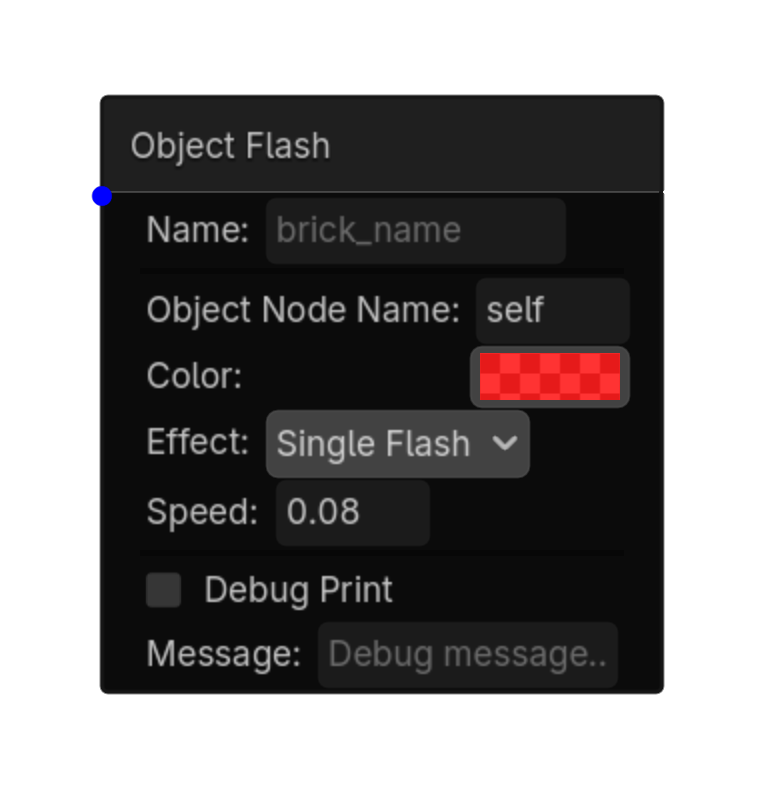
Object Flash

2D

Flashes a mesh/object with a temporary color overlay.\nType a node name, not a path.\n\

Menu Add Logic Brick → Actions → Game Feel

Options

Property Details
object_node_name Object Node Name
Default: self
color Color
Default: Color(1
effect Effect
Choices: Single Flash,Strobe,Color Strobe
Default: single_flash
speed Speed
Default: 0.08
Using this brick

Typical uses

  • Perform the general action described above after a trigger/gate chain succeeds.
  • Reuse the brick in multiple states or chains with different option values.
  • Pair it with an appropriate trigger to control when the action occurs.

Example chain

Choose a trigger Gate Object Flash
Tip Test the action with the simplest possible trigger first, then add variables, timing, or additional conditions.
Common mistake A continuously active trigger may run this action every frame. Use a one-shot condition when the action should happen only once.
Object Flash screenshot placeholder
Object Flash screenshot
action • shared

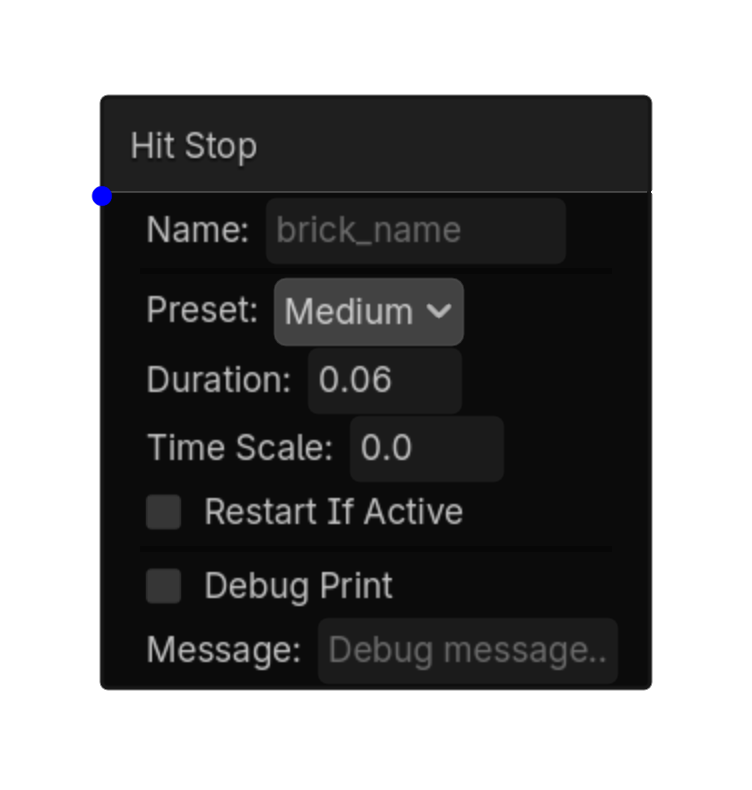
Hit Stop

2D

Briefly pauses or slows game time when an impact lands.\nUse for attacks, damage, blocks, heavy landings, and breaks.\nThis is also called hit pause or impact freeze.

Menu Add Logic Brick → Actions → Game Feel

Options

Property Details
preset Preset
Choices: Tiny,Light,Medium,Heavy,Custom
Default: medium
duration Duration
Default: 0.06
time_scale Time Scale
Default: 0.0
restart_if_active Restart If Active
Default: false
Using this brick

Typical uses

  • Perform the general action described above after a trigger/gate chain succeeds.
  • Reuse the brick in multiple states or chains with different option values.
  • Pair it with an appropriate trigger to control when the action occurs.

Example chain

Choose a trigger Gate Hit Stop
Tip Test the action with the simplest possible trigger first, then add variables, timing, or additional conditions.
Common mistake Timing options change how long the action takes; avoid retriggering the same transition every frame unless that behavior is intentional.
Hit Stop screenshot placeholder
Hit Stop screenshot
action • shared

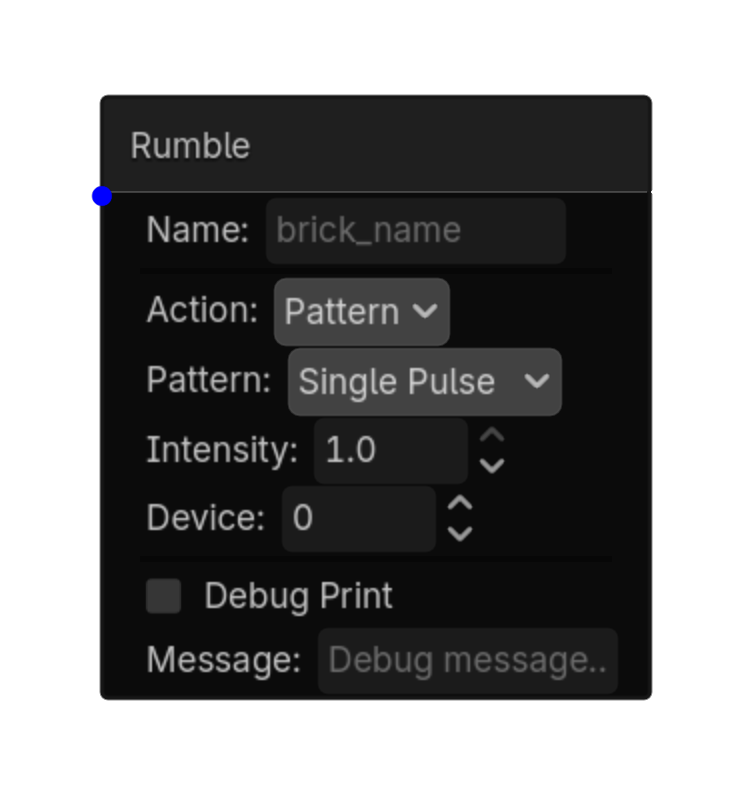
Rumble

2D

Trigger gate haptic vibration.\nVibrate: manual motor control for a set duration.\nStop: immediately stop all vibration.\nPattern: built-in presets that play to completion.\nThe trigger only needs to fire once — the pattern finishes even if the trigger stops.

Menu Add Logic Brick → Actions → Game Feel

Options

Property Details
action Action
Choices: Vibrate,Stop,Pattern
Default: pattern
weak_motor Weak Motor
Choices: 0.0,1.0
Default: 0.5
strong_motor Strong Motor
Choices: 0.0,1.0
Default: 0.5
duration Duration
Default: 0.5
pattern Pattern
Choices: Single Pulse,Double Pulse,Sustained,Ramp Up,Ramp Down,Heartbeat
Default: single_pulse
intensity Intensity
Choices: 0.0,1.0
Default: 1.0
device Device
Default: 0
Using this brick

Typical uses

  • Perform the general action described above after a trigger/gate chain succeeds.
  • Reuse the brick in multiple states or chains with different option values.
  • Pair it with an appropriate trigger to control when the action occurs.

Example chain

Choose a trigger Gate Rumble
Tip Test the action with the simplest possible trigger first, then add variables, timing, or additional conditions.
Common mistake Timing options change how long the action takes; avoid retriggering the same transition every frame unless that behavior is intentional.
Rumble screenshot placeholder
Rumble screenshot
action • shared

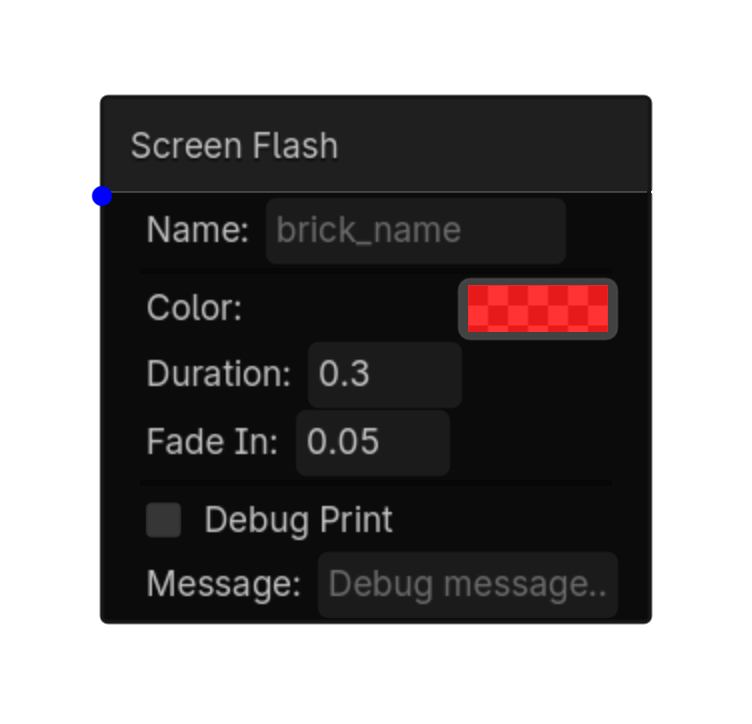
Screen Flash

2D

Flashes a color over the screen.\nPress \

Menu Add Logic Brick → Actions → Game Feel

Options

Property Details
color Color
Default: Color(1
duration Duration
Default: 0.3
fade_in Fade In
Default: 0.05
Using this brick

Typical uses

  • Perform the general action described above after a trigger/gate chain succeeds.
  • Reuse the brick in multiple states or chains with different option values.
  • Pair it with an appropriate trigger to control when the action occurs.

Example chain

Choose a trigger Gate Screen Flash
Tip Test the action with the simplest possible trigger first, then add variables, timing, or additional conditions.
Common mistake Timing options change how long the action takes; avoid retriggering the same transition every frame unless that behavior is intentional.
Screen Flash screenshot placeholder
Screen Flash screenshot
action • 2d

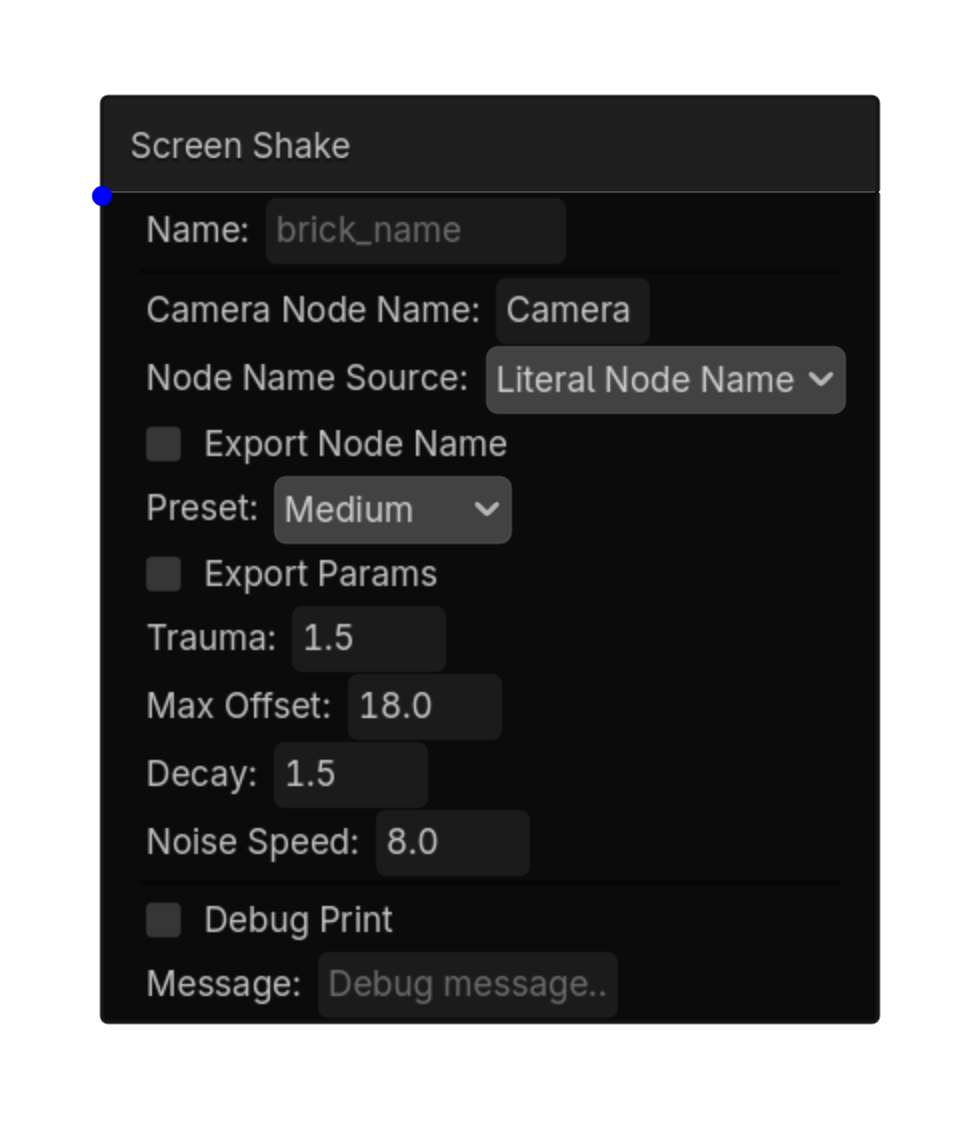
Camera Shake

2D

Temporarily shakes a Camera2D by changing its offset and rotation, then restores the original camera state.

MenuAdd Logic Brick → Actions → Game Feel

Options

PropertyDetails
camera_node_nameCamera2D node to shake. Default: Camera2D
intensityMaximum positional shake amount.
durationShake duration in seconds.
rotation_intensityMaximum rotational shake in degrees.
Using this brick

Typical uses

  • Run Camera Shake after a trigger and gate chain succeeds.
  • Combine it with states to enable the behavior only during the appropriate gameplay mode.

Example chain

TriggerGateCamera Shake
TipUse a just-pressed or one-shot trigger to start a single shake.
Common mistakeA continuously active trigger can restart the shake repeatedly.
Camera Shake action screenshot
Camera Shake screenshot
action • 2d

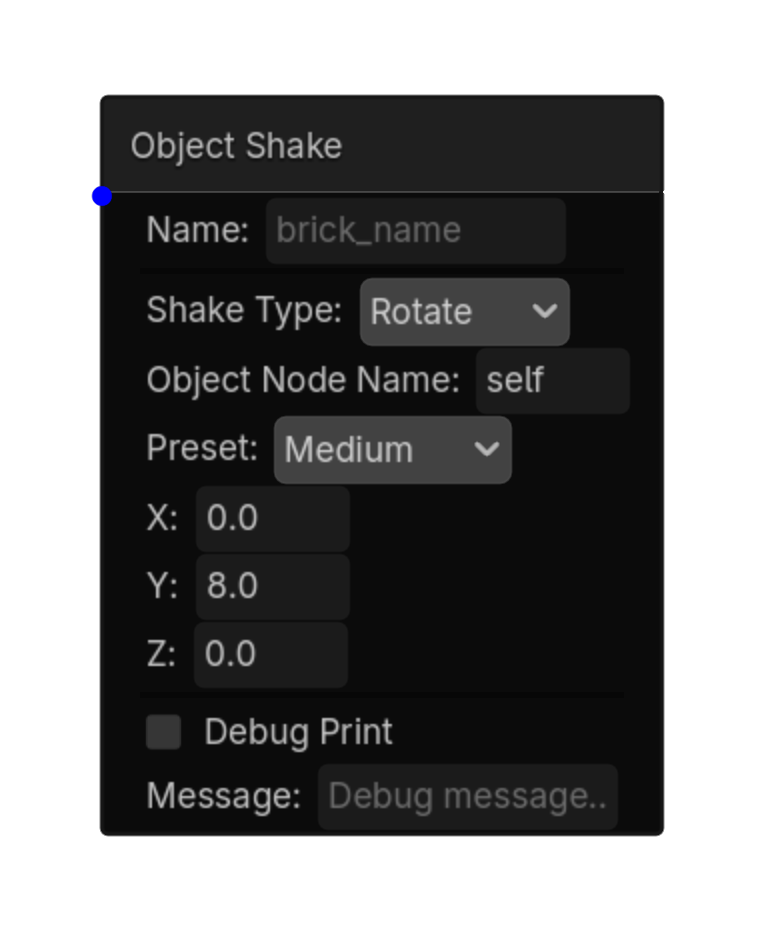
Object Shake

2D

Shakes a Node2D by position, rotation, or scale and restores its original transform afterward.

MenuAdd Logic Brick → Actions → Game Feel

Options

PropertyDetails
shake_typeTranslate, Rotate, or Scale.
target_node_nameNode2D to shake. Use self or select another Node2D in the scene.
presetStarting intensity preset; values remain editable.
x / yTranslate pixel offsets or temporary scale offsets.
rotation_degreesMaximum temporary rotation when Rotate is selected.
Using this brick

Typical uses

  • Run Object Shake after a trigger and gate chain succeeds.
  • Combine it with states to enable the behavior only during the appropriate gameplay mode.

Example chain

TriggerGateObject Shake
TipThe action keeps a persistent baseline so repeated triggers do not cause positional drift.
Common mistakeAvoid moving the target through another system during the same shake unless that movement is intended to be overwritten by the final restore.
Object Shake action screenshot
Object Shake screenshot
RIGHT-CLICK SUBMENU

Logic

Right-click → Actions → Logic

action • shared

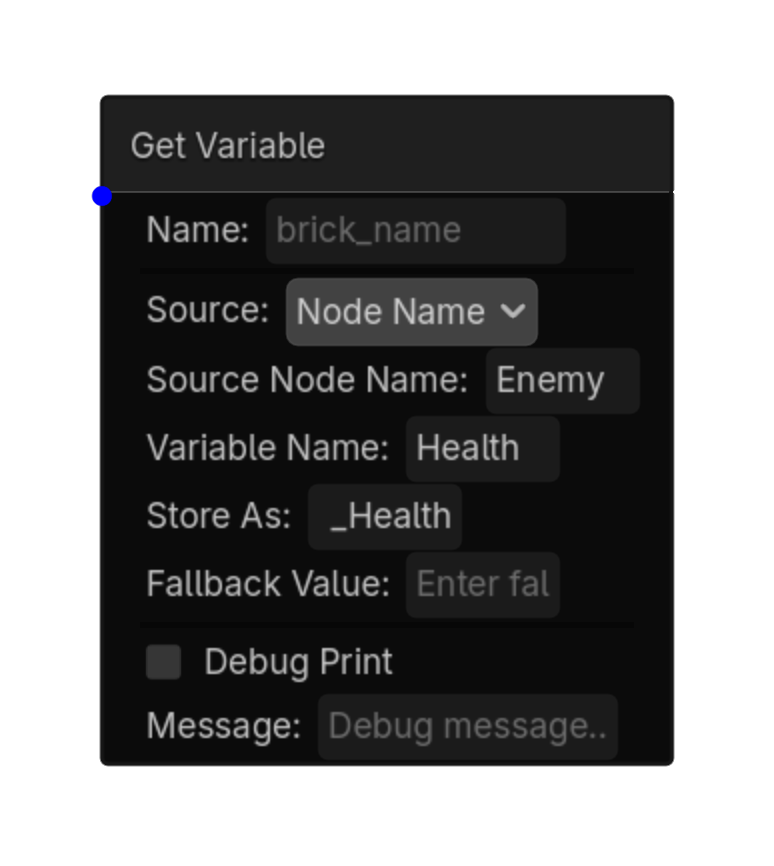
Get Variable

2D

Reads a variable from self, another node, or GlobalVars and stores it for later bricks.

Menu Add Logic Brick → Actions → Logic

Options

Property Details
source Source
Choices: Self,Node Name,GlobalVars
Default: node_name
source_node_name Source Node Name
variable_name Variable Name
store_as Store As
fallback_value Fallback Value
Using this brick

Typical uses

  • Perform the logic action described above after a trigger/gate chain succeeds.
  • Reuse the brick in multiple states or chains with different option values.
  • Pair it with an appropriate trigger to control when the action occurs.

Example chain

Choose a trigger Gate Get Variable
Tip Test the action with the simplest possible trigger first, then add variables, timing, or additional conditions.
Common mistake A continuously active trigger may run this action every frame. Use a one-shot condition when the action should happen only once.
Get Variable screenshot placeholder
Get Variable screenshot
action • shared

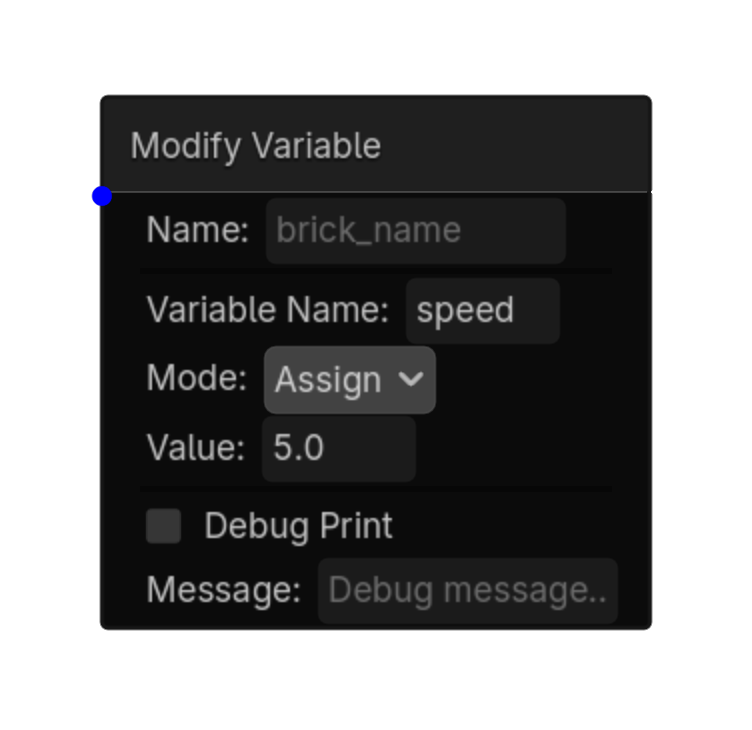
Modify Variable

2D

Modifies a variable's value.\nWorks with local and global variables.\nAutomatically uses GlobalVars if not found locally.

Menu Add Logic Brick → Actions → Logic

Options

Property Details
variable_name Variable Name
mode Mode
Standard variable choices: Assign, Add, Copy, Toggle.
Array choices (selected automatically for Array variables): Add Item, Remove Item, Remove At Index, Set Item At Index, Clear, Assign, Copy.

Default: assign
value Value
source_variable Source Variable
item_type Array Item Type
Shown for Add Item, Remove Item, and Set Item At Index. Choices: bool, int, float, String, Vector2, Vector3.
index Array Index
Shown for Remove At Index and Set Item At Index. Indexes begin at 0. Out-of-range indexes are ignored with a warning.
Array modification When variable_name matches an Array variable, the Mode menu changes automatically. Add Item appends an item, Remove Item removes the matching value, Remove At Index removes an item by position, Set Item At Index replaces an item at a position, and Clear removes all items. Copy makes an independent copy of an Array rather than sharing the same Array reference.
Prevent duplicate items Use a Compare Variable trigger set to Does Not Contain before a Modify Variable action set to Add Item. The action will only run when the item is not already in the Array.
Using this brick

Typical uses

  • Perform the general action described above after a trigger/gate chain succeeds.
  • Reuse the brick in multiple states or chains with different option values.
  • Pair it with an appropriate trigger to control when the action occurs.

Example chain

Choose a trigger Gate Modify Variable
Tip Test the action with the simplest possible trigger first, then add variables, timing, or additional conditions.
Common mistake A continuously active trigger may run this action every frame. Use a one-shot condition when the action should happen only once.
Modify Variable screenshot placeholder
Modify Variable screenshot
action • shared

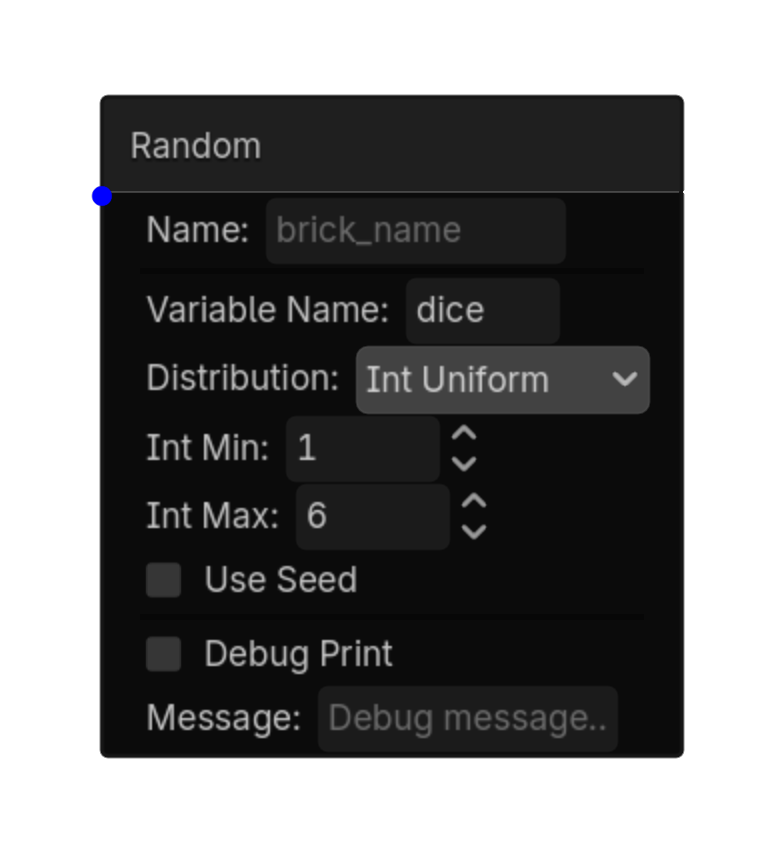
Random

2D

Similar to UPBGE's Random action

Menu Add Logic Brick → Actions → Logic

Options

Property Details
variable_name Variable Name
distribution Distribution
Choices: Bool Constant,Bool Uniform,Bool Bernoulli,Int Constant,Int Uniform,Int Poisson,Float Constant,Float Uniform,Float Normal,Float Neg Exp
Default: int_uniform
bool_value Bool Value
Default: true
bool_probability Bool Probability
Default: 0.5
int_value Int Value
Default: 0
int_min Int Min
Default: 0
int_max Int Max
Default: 100
int_lambda Int Lambda
Default: 1.0
float_value Float Value
Default: 0.0
float_min Float Min
Default: 0.0
float_max Float Max
Default: 1.0
float_mean Float Mean
Default: 0.0
float_stddev Float Stddev
Default: 1.0
float_lambda Float Lambda
Default: 1.0
use_seed Use Seed
Default: false
seed_value Seed Value
Default: 0
Using this brick

Typical uses

  • Perform the general action described above after a trigger/gate chain succeeds.
  • Reuse the brick in multiple states or chains with different option values.
  • Pair it with an appropriate trigger to control when the action occurs.

Example chain

Choose a trigger Gate Random
Tip Test the action with the simplest possible trigger first, then add variables, timing, or additional conditions.
Common mistake A continuously active trigger may run this action every frame. Use a one-shot condition when the action should happen only once.
Random screenshot placeholder
Random screenshot
action • shared

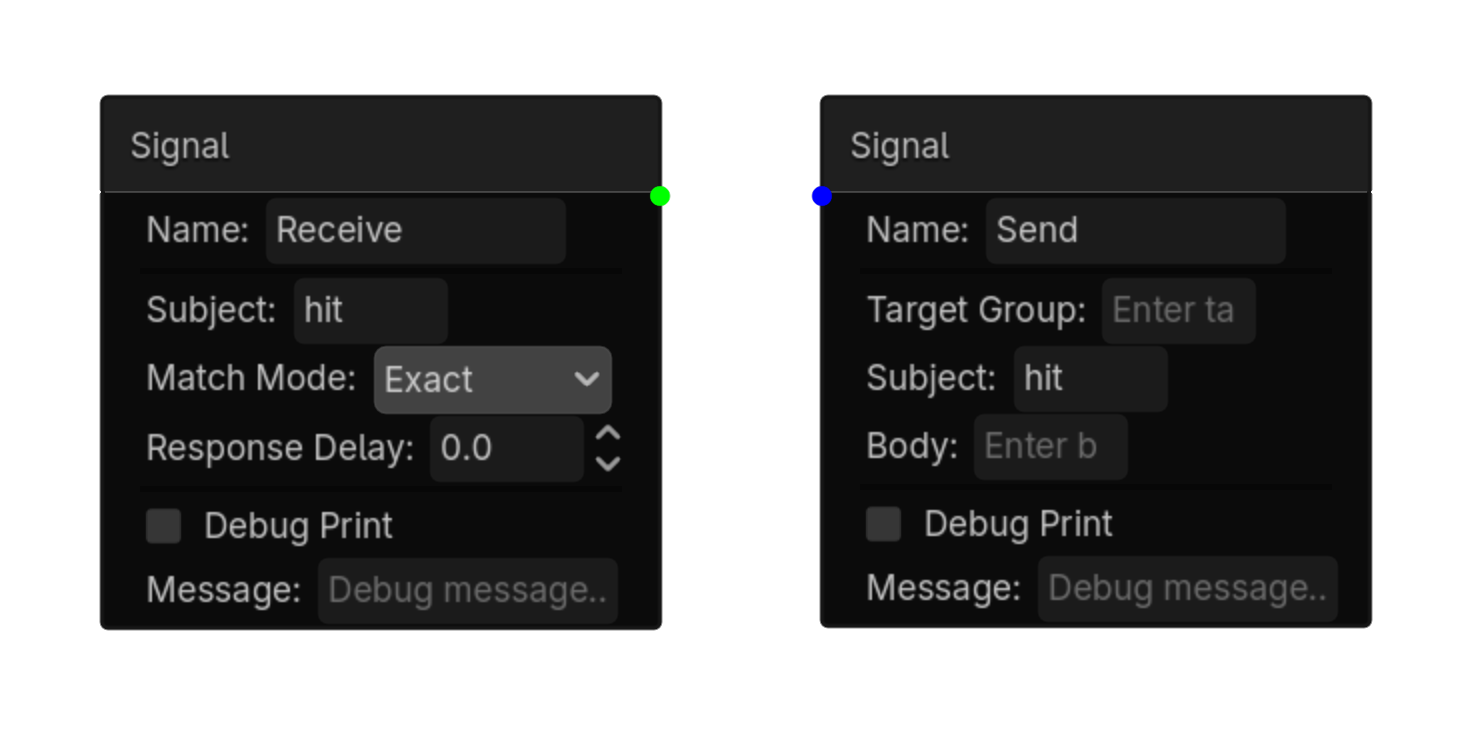
Signal Send

2D

Sends a signal to other nodes.\nReceiving nodes need a Signal Trigger listening for the subject.

Menu Add Logic Brick → Actions → Logic

Options

Property Details
target_group Target Group
subject Subject
body Body
Using this brick

Typical uses

  • Perform the general action described above after a trigger/gate chain succeeds.
  • Reuse the brick in multiple states or chains with different option values.
  • Pair it with an appropriate trigger to control when the action occurs.

Example chain

Choose a trigger Gate Signal
Tip Test the action with the simplest possible trigger first, then add variables, timing, or additional conditions.
Common mistake A continuously active trigger may run this action every frame. Use a one-shot condition when the action should happen only once.
action • shared

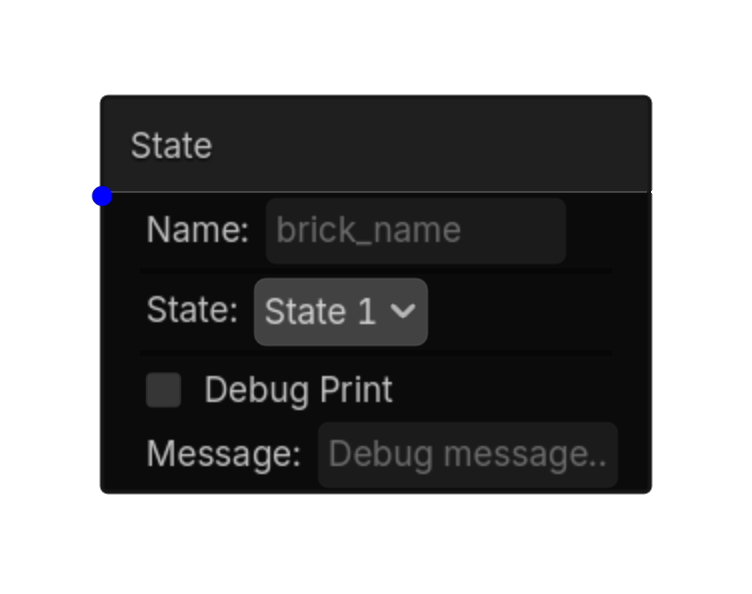
State

2D

State logic brick.

Menu Add Logic Brick → Actions → Logic

Options

Property Details
state_id State Id
Choices: __STATE_LIST__
Using this brick

Typical uses

  • Perform the general action described above after a trigger/gate chain succeeds.
  • Reuse the brick in multiple states or chains with different option values.
  • Pair it with an appropriate trigger to control when the action occurs.

Example chain

Choose a trigger Gate State
Tip Test the action with the simplest possible trigger first, then add variables, timing, or additional conditions.
Common mistake A continuously active trigger may run this action every frame. Use a one-shot condition when the action should happen only once.
State screenshot placeholder
State screenshot
RIGHT-CLICK SUBMENU

Motion

Right-click → Actions → Motion

action • 2d

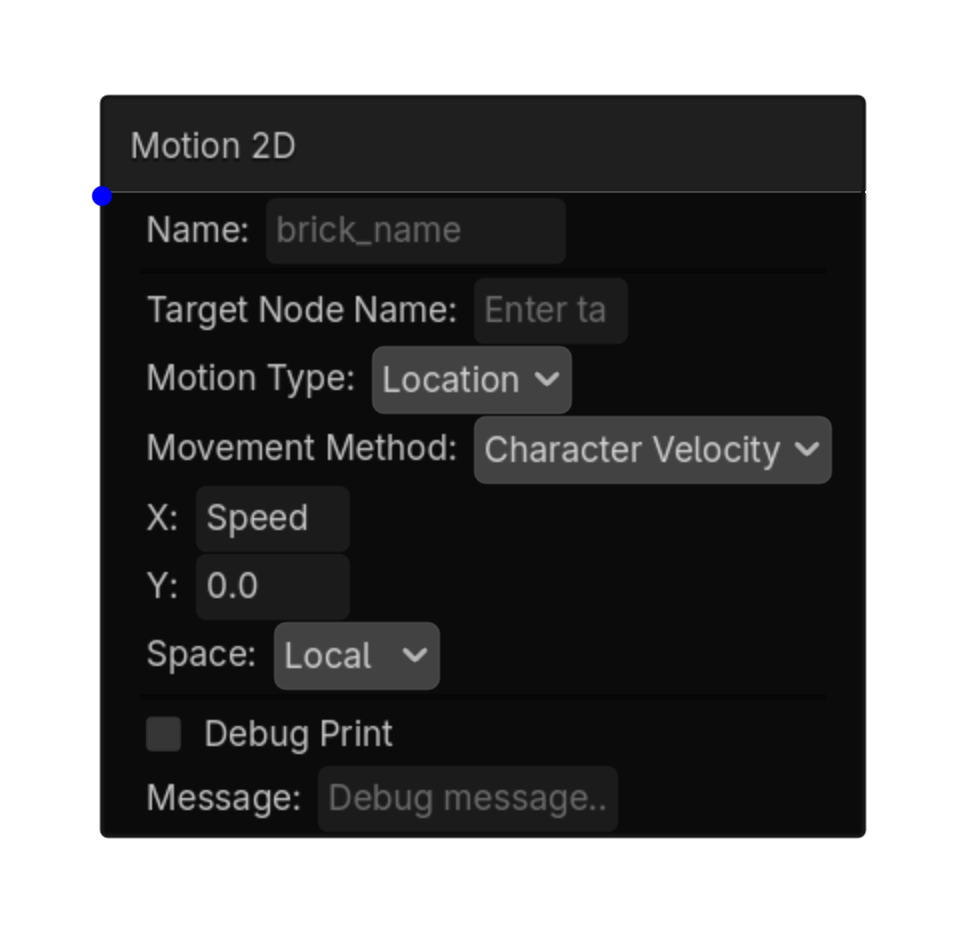
Position 2D

2D

Changes 2D position using Character Velocity, a translation offset, or an exact position.

MenuAdd Logic Brick → Actions → Motion → Position 2D
PropertyDescription / Default
target_node_nameBlank = self, or enter a child/node name.
movement_methodCharacter Velocity, Translate, or Set Position.
xX value; number, variable, or expression. Default 0.0.
yY value; number, variable, or expression. Default 0.0.
spaceLocal or Global.
Using this brick
Tip Connect the Action after a Gate. Apply Code will warn if required values are missing.
action • 2d

Rotation 2D

2D

Rotates a 2D object by a number of degrees.

MenuAdd Logic Brick → Actions → Motion → Rotation 2D
PropertyDescription / Default
target_node_nameBlank = self, or enter a child/node name.
degreesDegrees to rotate; number, variable, or expression. Default 0.0.
spaceLocal or Global.
Using this brick
Tip Connect the Action after a Gate. Apply Code will warn if required values are missing.
action • 2d

Scale 2D

2D

Changes a 2D object's scale, instantly or with a tween.

MenuAdd Logic Brick → Actions → Motion → Scale 2D
PropertyDescription / Default
target_node_nameBlank = self, or enter a child/node name.
xTarget X scale. Default 1.0.
yTarget Y scale. Default 1.0.
use_tweenAnimate smoothly to the target scale.
durationTween duration in seconds.
transitionTween transition curve.
easeTween easing direction.
Using this brick
Tip Connect the Action after a Gate. Apply Code will warn if required values are missing.
action • 2d

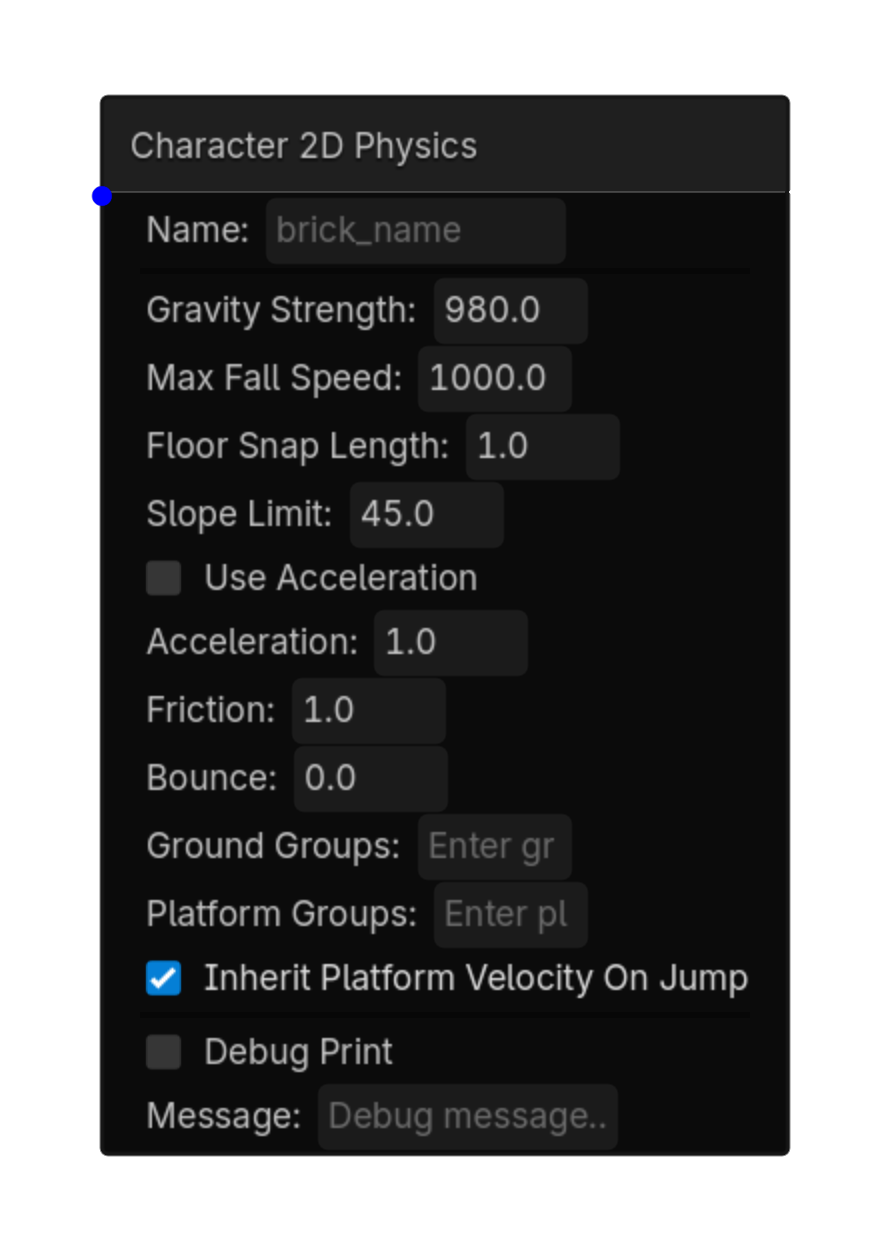
Character 2D Physics

2D

Finalizes CharacterBody2D movement once per physics frame. Position 2D Actions add requested movement; this brick applies gravity, friction, acceleration, snapping, slope limits, bounce, and move_and_slide().

Menu Add Logic Brick → Actions → Motion

Options

Property Details
gravity_strength Gravity Strength
Default: 980.0
max_fall_speed Max Fall Speed
Default: 1000.0
floor_snap_length Floor Snap Length
Default: 1.0
slope_limit Slope Limit
Default: 45.0
use_acceleration Use Acceleration
Default: false
acceleration Acceleration
Default: 1.0
friction Friction
Default: 1.0
bounce Bounce
Default: 0.0
ground_groups Ground Groups
Enter ground groups
platform_groups Platform Groups
Enter platform groups
inherit_platform_velocity_on_jump Inherit Platform Velocity On Jump
Default: true
Using this brick

Typical uses

  • Perform the motion action described above after a trigger/gate chain succeeds.
  • Reuse the brick in multiple states or chains with different option values.
  • Pair it with an appropriate trigger to control when the action occurs.

Example chain

Choose a trigger Gate Character 2D Physics
Tip Test the action with the simplest possible trigger first, then add variables, timing, or additional conditions.
Common mistake A continuously active trigger may run this action every frame. Use a one-shot condition when the action should happen only once.
Character 2D Physics screenshot placeholder
Character 2D Physics screenshot
action • 2d

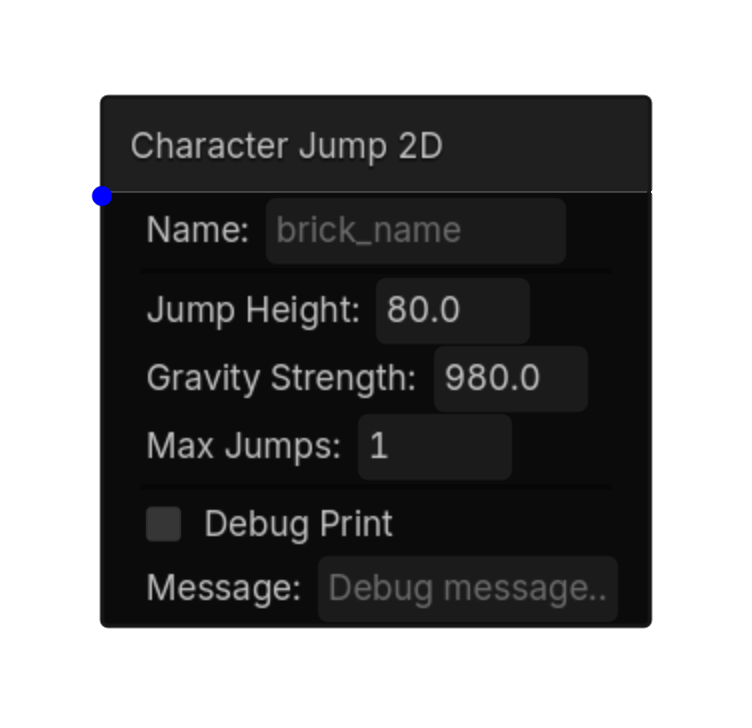
Character Jump 2D

2D

Character Jump 2D logic brick.

Menu Add Logic Brick → Actions → Motion

This brick exposes no configurable properties.
Using this brick

Typical uses

  • Perform the general action described above after a trigger/gate chain succeeds.
  • Reuse the brick in multiple states or chains with different option values.
  • Pair it with an appropriate trigger to control when the action occurs.

Example chain

Choose a trigger Gate Character Jump 2D
Tip Test the action with the simplest possible trigger first, then add variables, timing, or additional conditions.
Common mistake A continuously active trigger may run this action every frame. Use a one-shot condition when the action should happen only once.
Character Jump 2D screenshot placeholder
Character Jump 2D screenshot
action • 2d

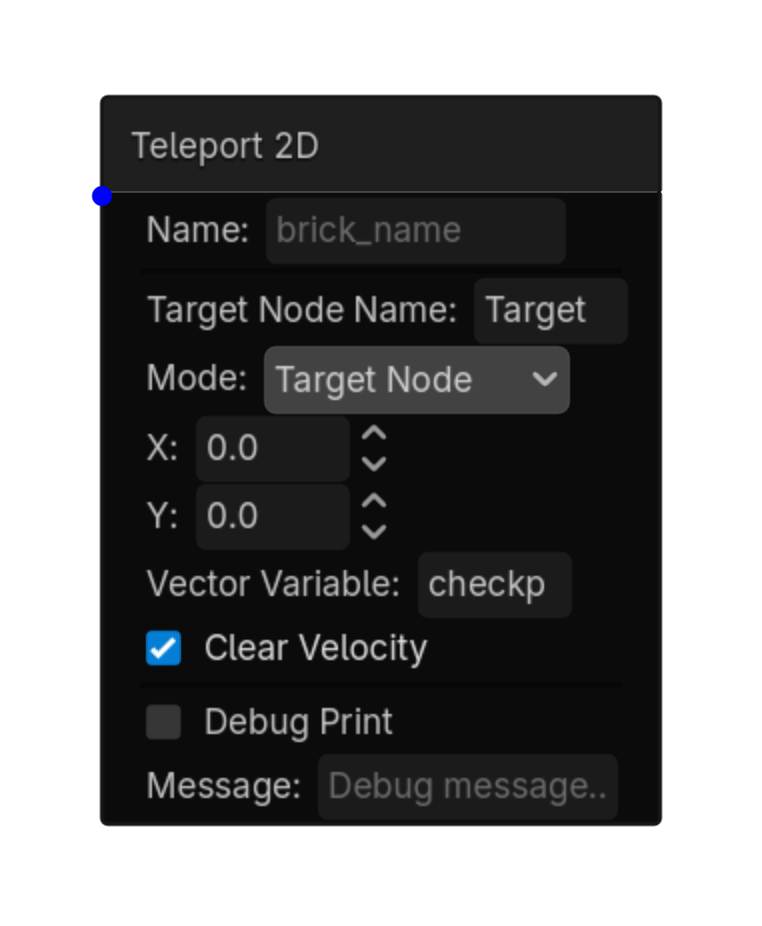
Teleport 2D

2D

Instantly sets position to a target Node2D or coordinates.\nUseful for respawning, portals, checkpoints, and spawn points.

Menu Add Logic Brick → Actions → Motion

Options

Property Details
target_node_name Target Node Name
Default: Target
Target Node2D node name
mode Mode
Choices: Target Node,Coordinates,Vector Variable
Default: target_node
x X
Default: 0.0
y Y
Default: 0.0
vector_variable Vector Variable
clear_velocity Clear Velocity
Default: true
Using this brick

Typical uses

  • Perform the motion action described above after a trigger/gate chain succeeds.
  • Reuse the brick in multiple states or chains with different option values.
  • Target a specific node by configuring the node field before testing the chain.

Example chain

Choose a trigger Gate Teleport 2D
Tip Confirm the target node name and node type before troubleshooting the rest of the chain.
Common mistake A continuously active trigger may run this action every frame. Use a one-shot condition when the action should happen only once.
Teleport 2D screenshot placeholder
Teleport 2D screenshot
action • 2d

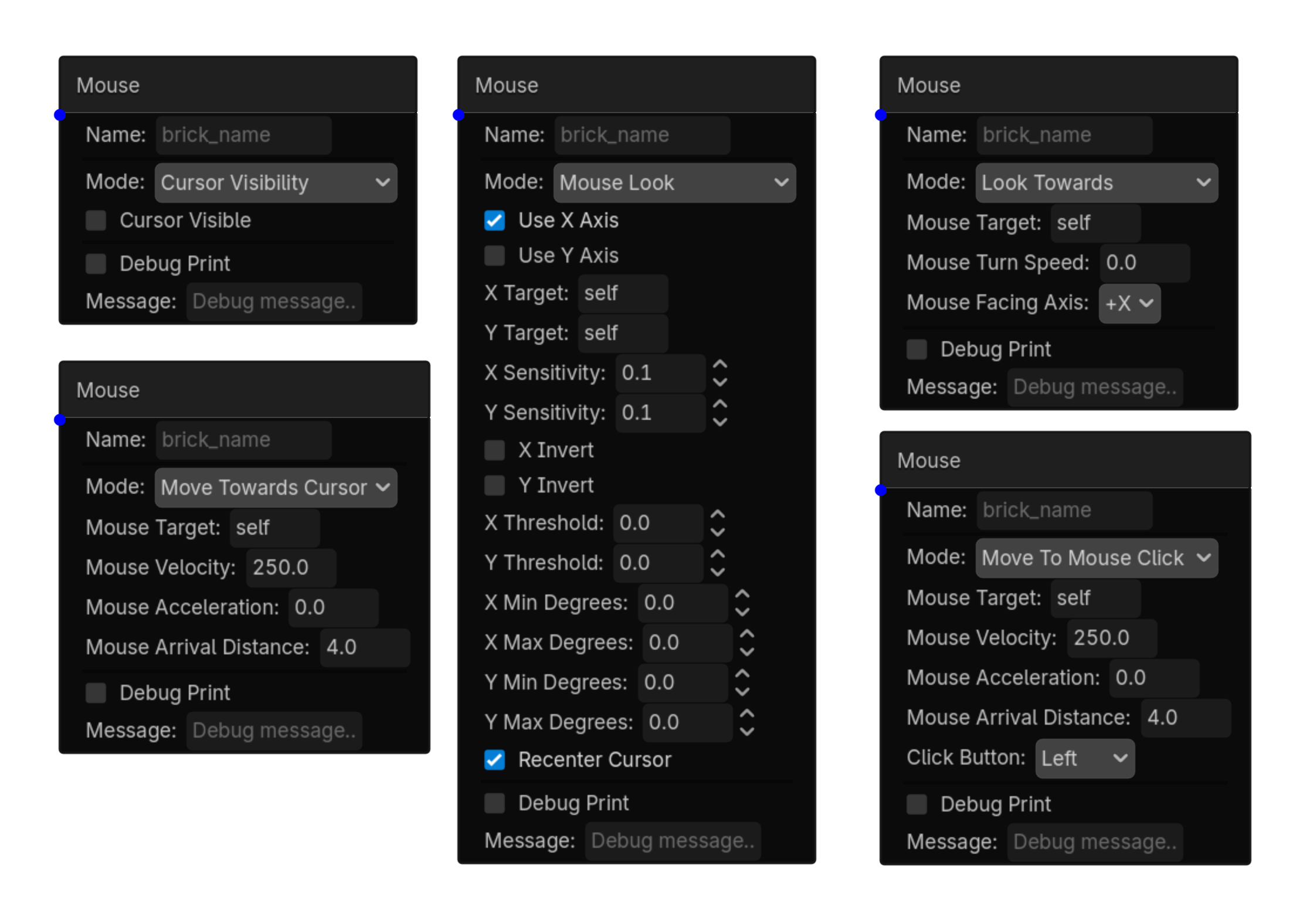
Mouse

2D

Toggle cursor visibility or rotate object based on mouse movement

Menu Add Logic Brick → Actions → Motion

Options

Property Details
mode Mode
Choices: Cursor Visibility,Mouse Look,Look Towards,Move Towards Cursor,Move To Mouse Click
Default: cursor_visibility
cursor_visible Cursor Visible
Default: false
use_x_axis Use X Axis
Default: true
use_y_axis Use Y Axis
Default: true
x_target X Target
Default: self
y_target Y Target
Default: self
x_sensitivity X Sensitivity
Default: 0.1
y_sensitivity Y Sensitivity
Default: 0.1
x_invert X Invert
Default: false
y_invert Y Invert
Default: false
x_threshold X Threshold
Default: 0.0
y_threshold Y Threshold
Default: 0.0
x_min_degrees X Min Degrees
Default: 0.0
x_max_degrees X Max Degrees
Default: 0.0
y_min_degrees Y Min Degrees
Default: -90.0
y_max_degrees Y Max Degrees
Default: 90.0
x_rotation_axis X Rotation Axis
Choices: X,Y,Z
Default: y
y_rotation_axis Y Rotation Axis
Choices: X,Y,Z
Default: x
x_use_local X Use Local
Default: false
y_use_local Y Use Local
Default: false
recenter_cursor Recenter Cursor
Default: true
mouse_target Mouse Target
Default: self
mouse_velocity Mouse Velocity
Default: 5.0
mouse_acceleration Mouse Acceleration
Default: 0.0
mouse_turn_speed Mouse Turn Speed
Default: 0.0
mouse_arrival_distance Mouse Arrival Distance
Default: 0.1
mouse_facing_axis Mouse Facing Axis
Choices: +X,-X,+Y,-Y,+Z,-Z
Default: +z
mouse_lock_y Mouse Lock Y
Default: true
click_button Click Button
Choices: Left,Right,Middle
Default: left
Using this brick

Typical uses

  • Perform the general action described above after a trigger/gate chain succeeds.
  • Reuse the brick in multiple states or chains with different option values.
  • Pair it with an appropriate trigger to control when the action occurs.

Example chain

Choose a trigger Gate Mouse
Tip Test the action with the simplest possible trigger first, then add variables, timing, or additional conditions.
Common mistake A continuously active trigger may run this action every frame. Use a one-shot condition when the action should happen only once.
Mouse screenshot placeholder
Mouse screenshot
action • 2d

Steering

2D

Steers a Node2D using Seek, Flee, Arrive, Wander, Maintain Distance, or Orbit behavior.

MenuAdd Logic Brick → Actions → Motion

Options

PropertyDetails
behaviorSeek, Flee, Arrive, Wander, Maintain Distance, or Orbit.
target_modeNode Name, Group, or Coordinates. Wander does not need a target.
speed / arrival_distanceBase speed and normal stopping distance.
slowing_distanceArrive only. Distance where slowing begins.
desired_distance / distance_toleranceMaintain Distance only.
orbit_distance / orbit_directionOrbit only.
wander_amount / wander_frequencyWander only. Random heading change and timing.
face_targetRotate to face the steering direction.
use_navigationUse NavigationAgent2D for Seek or Arrive when available.
Using this brick

Typical uses

  • Chasing and fleeing enemies.
  • Wandering NPCs.
  • Ranged enemies that maintain a preferred distance.
  • Enemies that orbit or strafe around a target.

Compatibility

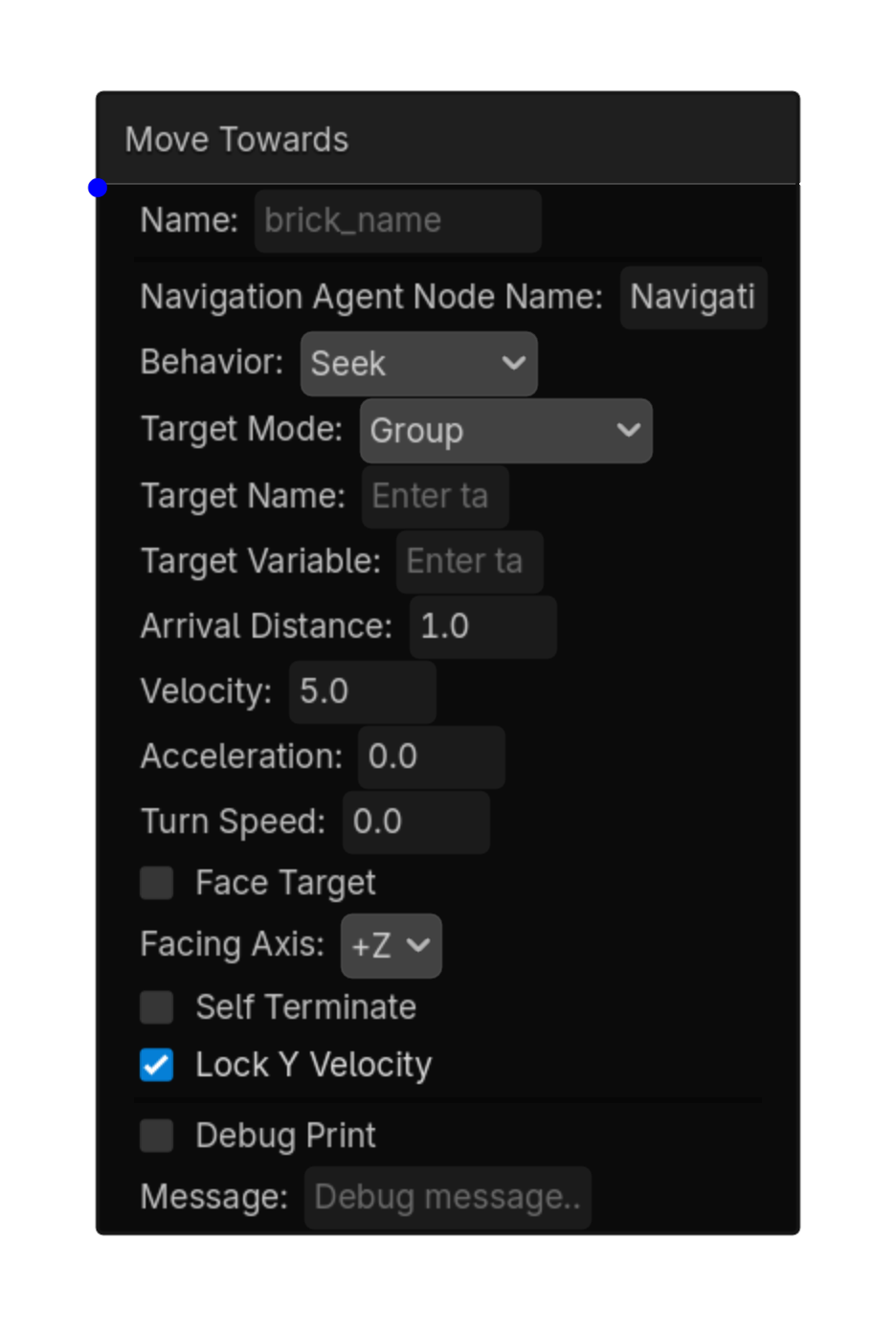
The previous Move Towards behavior is now Steering → Seek.

Steering action screenshot
Steering screenshot
action • 2d

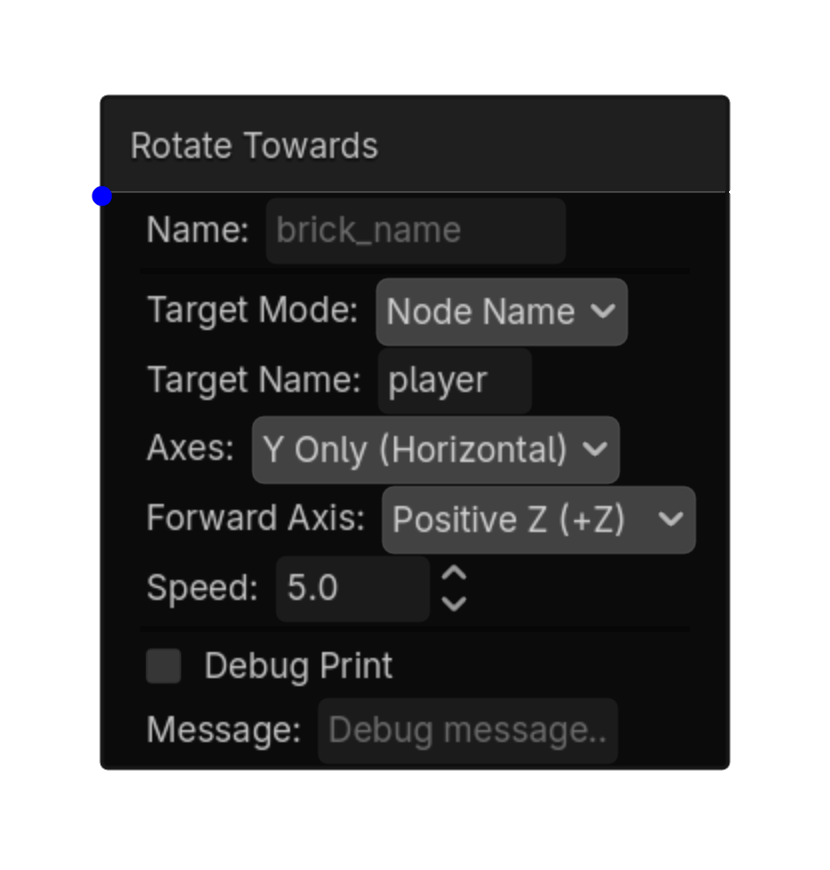
Rotate Towards

2D

Rotates a Node2D toward a target node or nearest group member using 2D angular interpolation.

MenuAdd Logic Brick → Actions → Motion

Options

PropertyDetails
target_modeNode Name or Group.
target_nameTarget node or group.
speedRotation speed in degrees per second.
angle_offsetAdditional angle offset in degrees.
Using this brick

Typical uses

  • Run Rotate Towards after a trigger and gate chain succeeds.
  • Combine it with states to enable the behavior only during the appropriate gameplay mode.

Example chain

TriggerGateRotate Towards
TipUse Angle Offset when the artwork faces up or another direction instead of Godot’s positive X axis.
Common mistakeEntering a group with no active Node2D members leaves the action without a valid target.
Rotate Towards action screenshot
Rotate Towards screenshot
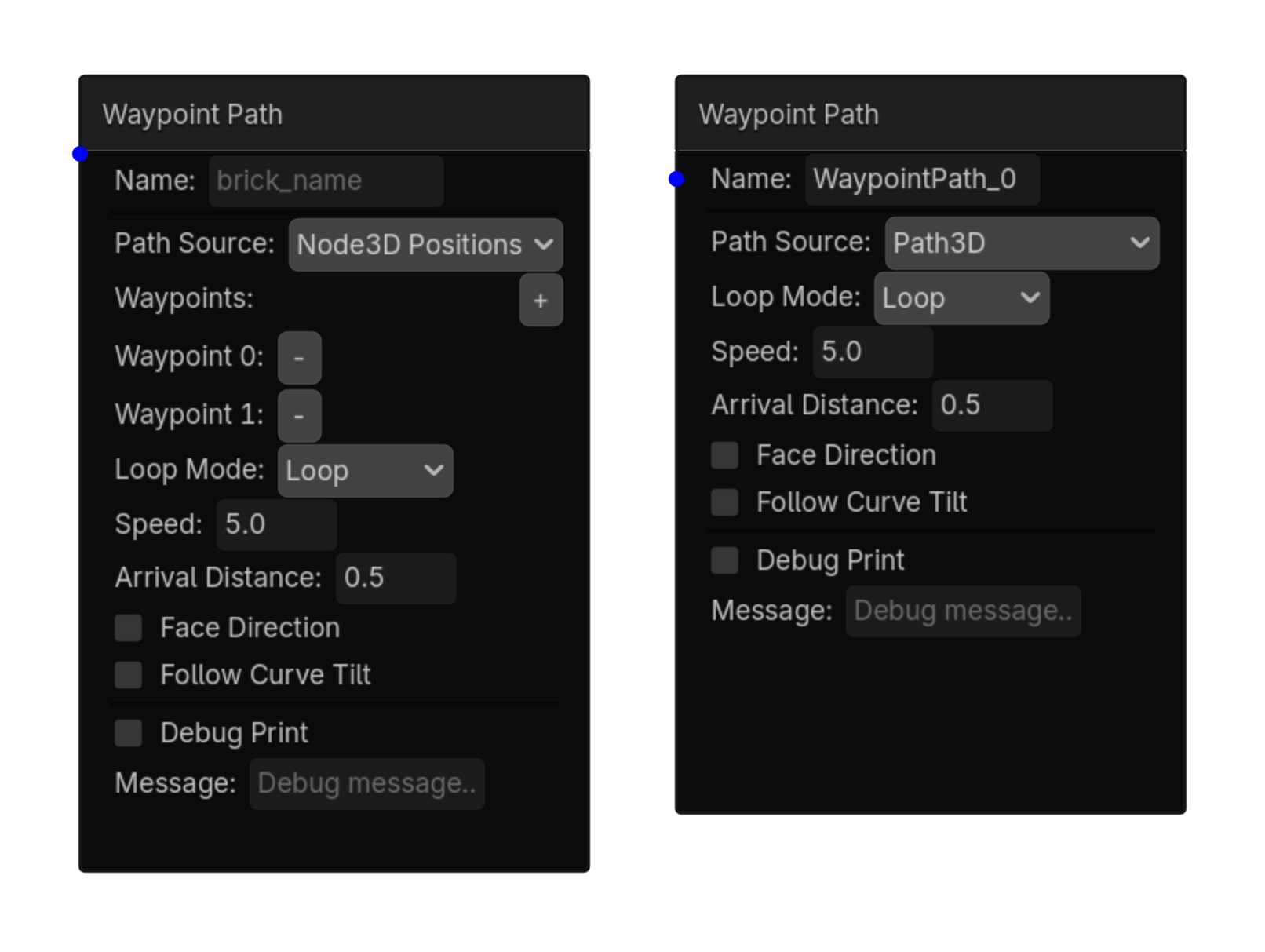
action • 2d

Path Follow

2D

Moves a Node2D along the points of a Path2D curve with optional looping and direction-facing.

MenuAdd Logic Brick → Actions → Motion

Options

PropertyDetails
path_node_namePath2D containing the Curve2D to follow.
speedMovement speed in pixels per second.
loopReturn to the first waypoint after the last point.
face_directionRotate the moving node to face its travel direction.
Using this brick

Typical uses

  • Run Path Follow after a trigger and gate chain succeeds.
  • Combine it with states to enable the behavior only during the appropriate gameplay mode.

Example chain

TriggerGatePath Follow
TipAdd at least two points to the Path2D curve before testing.
Common mistakeThe action follows the Path2D curve points; an empty curve cannot produce movement.
After editing waypoints Click Refresh Waypoints so the brick rebuilds its waypoint list before testing.
Path Follow action screenshot
Path Follow screenshot
RIGHT-CLICK SUBMENU

Object

Right-click → Actions → Object

action • 2d

Parent

2D

Changes this 2D node's parent using a scene node or group, or reparents it back to the scene root.

MenuAdd Logic Brick → Actions → Object → Parent

Options

PropertyDetails
modeSet Parent or Remove Parent.
parent_target_modeNode Name or Group.
parent_nodeScene node used when Node Name is selected.
parent_groupUses the first node in the selected group.
keep_transformPreserve global 2D transform while reparenting.
action • shared

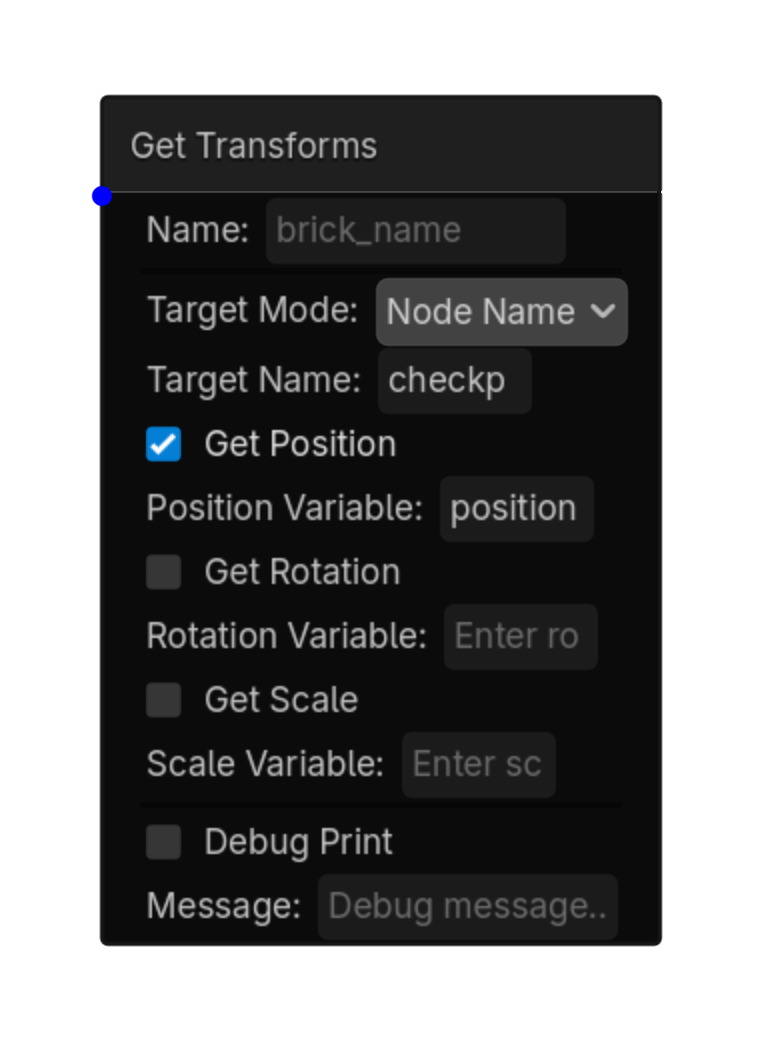
Get Transform

2D

Gets position, rotation, and scale from a node or the nearest member of a group and stores the values as variables.

Menu Add Logic Brick → Actions → Object

Options

Property Details
target_mode Target Mode
Choices: Node Name,Group
Default: node_name
target_name Target Name
Node or group name
get_position Get Position
Default: true
position_variable Position Variable
get_rotation Get Rotation
Default: false
rotation_variable Rotation Variable
get_scale Get Scale
Default: false
scale_variable Scale Variable
Using this brick

Typical uses

  • Perform the object action described above after a trigger/gate chain succeeds.
  • Reuse the brick in multiple states or chains with different option values.
  • Pair it with an appropriate trigger to control when the action occurs.

Example chain

Choose a trigger Gate Get Transform
Tip Test the action with the simplest possible trigger first, then add variables, timing, or additional conditions.
Common mistake A continuously active trigger may run this action every frame. Use a one-shot condition when the action should happen only once.
Get Transform screenshot placeholder
Get Transform screenshot
action • shared

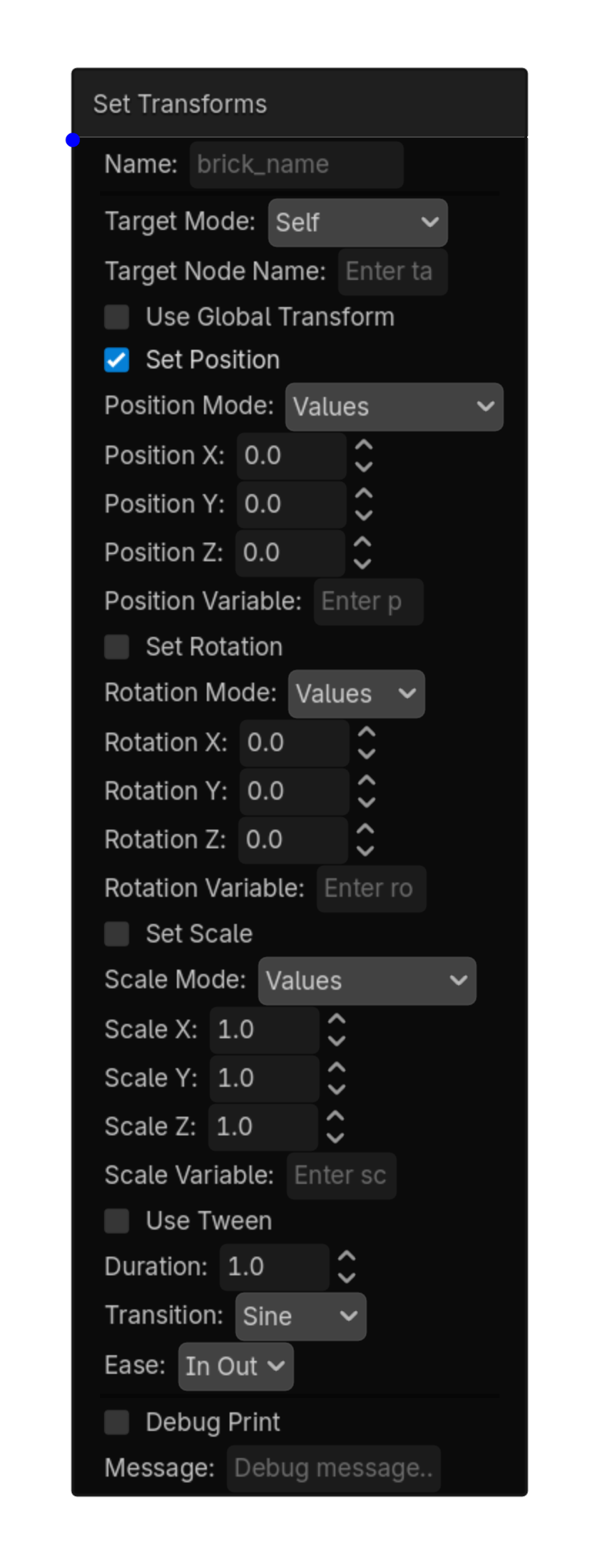
Set Transform

2D

Sets position, rotation, and scale from entered values or variables, instantly or over time.

Menu Add Logic Brick → Actions → Object

This brick exposes no configurable properties.
Using this brick

Typical uses

  • Perform the object action described above after a trigger/gate chain succeeds.
  • Reuse the brick in multiple states or chains with different option values.
  • Pair it with an appropriate trigger to control when the action occurs.

Example chain

Choose a trigger Gate Set Transform
Tip Test the action with the simplest possible trigger first, then add variables, timing, or additional conditions.
Common mistake A continuously active trigger may run this action every frame. Use a one-shot condition when the action should happen only once.
Set Transform screenshot placeholder
Set Transform screenshot
action • 2d

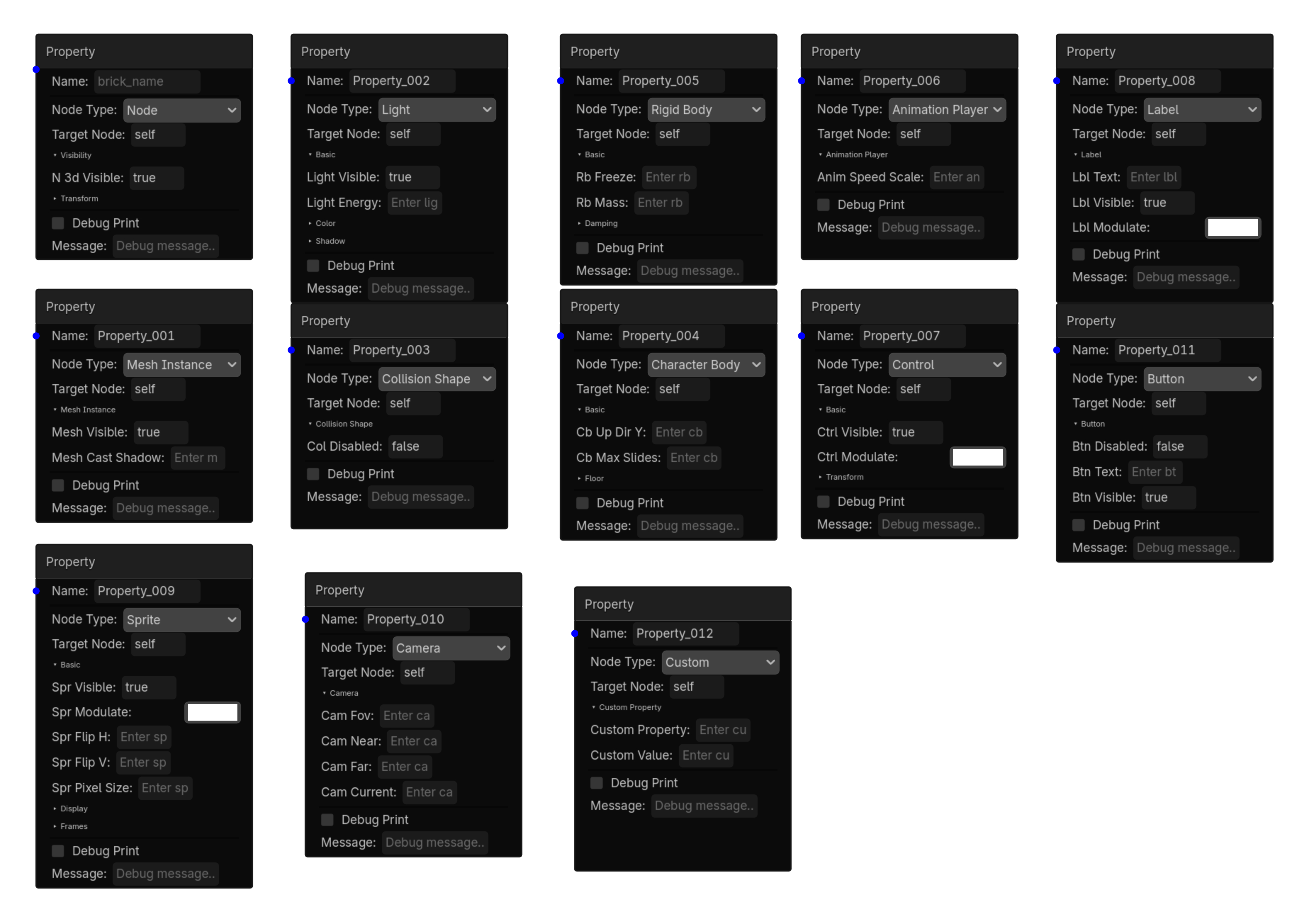
Node Properties

2D

Sets properties on a target node.\nChoose the node type to see its available properties.\nLeave a field empty to skip setting that property.\n⚠ Adds @export in Inspector — assign the target node.

Menu Add Logic Brick → Actions → Object

Options

Property Details
node_type Node Type
Choices: Node,Mesh Instance,Collision Shape,Light,Rigid Body,Character Body,Animation Player,Control,Label,Button,Camera,Sprite,Custom
Default: Node
target_node Target Node
Default: self
_group_n3d_visibility Group N3D Visibility
Choices: Visibility
n3d_visible N3D Visible
Default: true
_group_n3d_transform Group N3D Transform
Choices: Transform
n3d_pos_x N3D Pos X
n3d_pos_y N3D Pos Y
n3d_pos_z N3D Pos Z
n3d_rot_x N3D Rot X
n3d_rot_y N3D Rot Y
n3d_rot_z N3D Rot Z
n3d_scale_x N3D Scale X
n3d_scale_y N3D Scale Y
n3d_scale_z N3D Scale Z
_group_mesh_basic Group Mesh Basic
Choices: Mesh Instance
mesh_visible Mesh Visible
Default: true
mesh_cast_shadow Mesh Cast Shadow
_group_col_basic Group Col Basic
Choices: Collision Shape
col_disabled Col Disabled
Default: false
_group_light_basic Group Light Basic
Choices: Basic
light_visible Light Visible
Default: true
light_energy Light Energy
_group_light_color Group Light Color
Choices: Color
light_color Light Color
Default: Color(1
_group_light_shadow Group Light Shadow
Choices: Shadow
light_shadow Light Shadow
_group_rb_basic Group Rb Basic
Choices: Basic
rb_freeze Rb Freeze
rb_mass Rb Mass
_group_rb_damping Group Rb Damping
Choices: Damping
rb_gravity_scale Rb Gravity Scale
rb_linear_damp Rb Linear Damp
rb_angular_damp Rb Angular Damp
_group_cb_basic Group Cb Basic
Choices: Basic
cb_up_dir_y Cb Up Dir Y
cb_max_slides Cb Max Slides
_group_cb_floor Group Cb Floor
Choices: Floor
cb_floor_max_angle Cb Floor Max Angle
cb_stop_on_slope Cb Stop On Slope
cb_block_on_wall Cb Block On Wall
cb_slide_on_ceiling Cb Slide On Ceiling
_group_anim_basic Group Anim Basic
Choices: Animation Player
anim_speed_scale Anim Speed Scale
_group_ctrl_basic Group Ctrl Basic
Choices: Basic
ctrl_visible Ctrl Visible
Default: true
ctrl_modulate Ctrl Modulate
Default: Color(1
_group_ctrl_transform Group Ctrl Transform
Choices: Transform
ctrl_size_x Ctrl Size X
ctrl_size_y Ctrl Size Y
ctrl_pos_x Ctrl Pos X
ctrl_pos_y Ctrl Pos Y
ctrl_rotation Ctrl Rotation
ctrl_scale_x Ctrl Scale X
ctrl_scale_y Ctrl Scale Y
_group_lbl_basic Group Lbl Basic
Choices: Label
lbl_text Lbl Text
lbl_visible Lbl Visible
Default: true
lbl_modulate Lbl Modulate
Default: Color(1
_group_btn_basic Group Btn Basic
Choices: Button
btn_disabled Btn Disabled
Default: false
btn_text Btn Text
btn_visible Btn Visible
Default: true
_group_cam_basic Group Cam Basic
Choices: Camera
cam_fov Cam Fov
cam_near Cam Near
cam_far Cam Far
cam_current Cam Current
_group_spr_basic Group Spr Basic
Choices: Basic
spr_visible Spr Visible
Default: true
spr_modulate Spr Modulate
Default: Color(1
spr_flip_h Spr Flip H
spr_flip_v Spr Flip V
spr_pixel_size Spr Pixel Size
_group_spr_display Group Spr Display
Choices: Display
spr_billboard Spr Billboard
spr_transparent Spr Transparent
spr_shaded Spr Shaded
spr_double_sided Spr Double Sided
_group_spr_frames Group Spr Frames
Choices: Frames
spr_frame Spr Frame
spr_hframes Spr Hframes
spr_vframes Spr Vframes
_group_custom Group Custom
Choices: Custom Property
custom_property Custom Property
custom_value Custom Value
Using this brick

Typical uses

  • Perform the general action described above after a trigger/gate chain succeeds.
  • Reuse the brick in multiple states or chains with different option values.
  • Target a specific node by configuring the node field before testing the chain.

Example chain

Choose a trigger Gate Property
Tip Confirm the target node name and node type before troubleshooting the rest of the chain.
Common mistake A continuously active trigger may run this action every frame. Use a one-shot condition when the action should happen only once.
Property screenshot placeholder
Property screenshot
action • shared

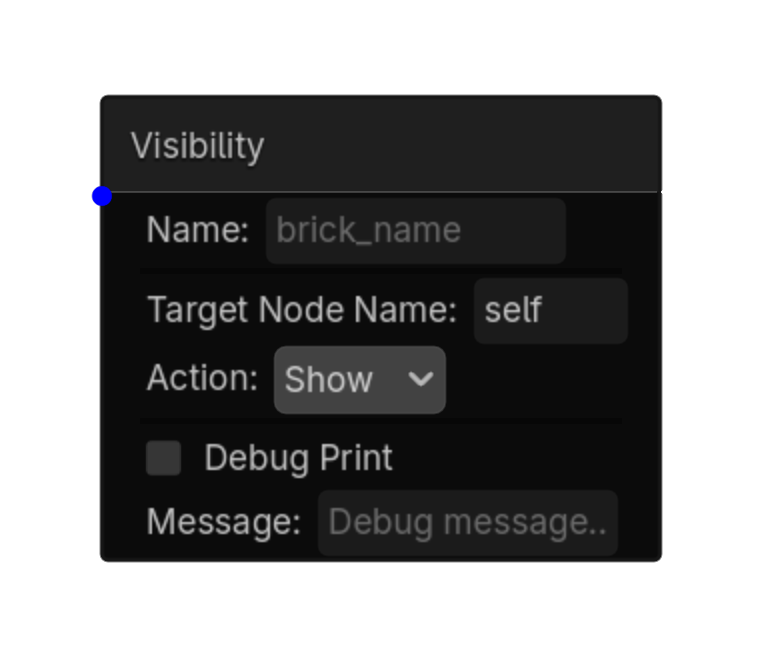
Visibility

2D

Shows, hides, or toggles visibility of a node by name. Uses the same current-scene recursive name lookup as the Text Action.

Menu Add Logic Brick → Actions → Object

Options

Property Details
target_node_name Target Node Name
Default: self
Node name
action Action
Choices: Show,Hide,Toggle
Default: show
Using this brick

Typical uses

  • Perform the general action described above after a trigger/gate chain succeeds.
  • Reuse the brick in multiple states or chains with different option values.
  • Target a specific node by configuring the node field before testing the chain.

Example chain

Choose a trigger Gate Visibility
Tip Confirm the target node name and node type before troubleshooting the rest of the chain.
Common mistake A continuously active trigger may run this action every frame. Use a one-shot condition when the action should happen only once.
Visibility screenshot placeholder
Visibility screenshot
RIGHT-CLICK SUBMENU

Physics

Right-click → Actions → Physics

action • 2d

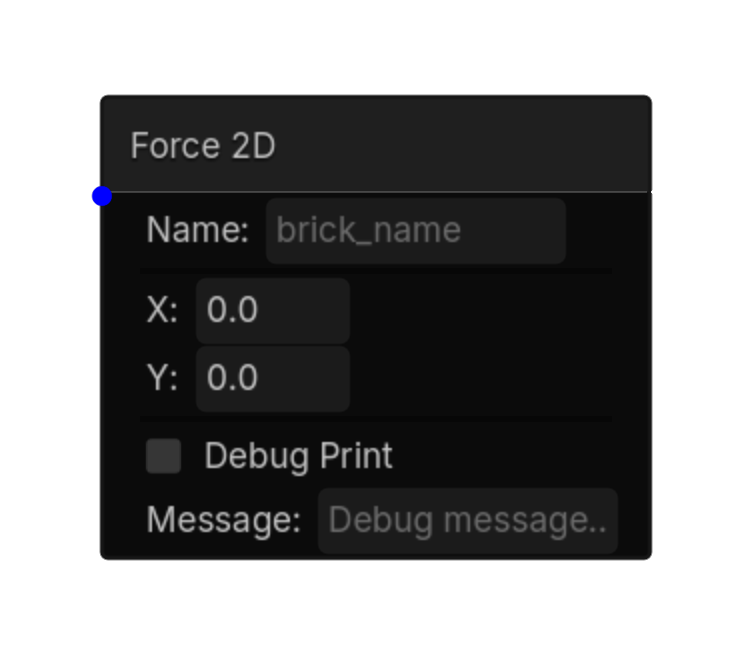
Force 2D

2D

Force 2D logic brick.

Menu Add Logic Brick → Actions → Physics

This brick exposes no configurable properties.
Using this brick

Typical uses

  • Perform the general action described above after a trigger/gate chain succeeds.
  • Reuse the brick in multiple states or chains with different option values.
  • Pair it with an appropriate trigger to control when the action occurs.

Example chain

Choose a trigger Gate Force 2D
Tip Test the action with the simplest possible trigger first, then add variables, timing, or additional conditions.
Common mistake A continuously active trigger may run this action every frame. Use a one-shot condition when the action should happen only once.
Force 2D screenshot placeholder
Force 2D screenshot
action • 2d

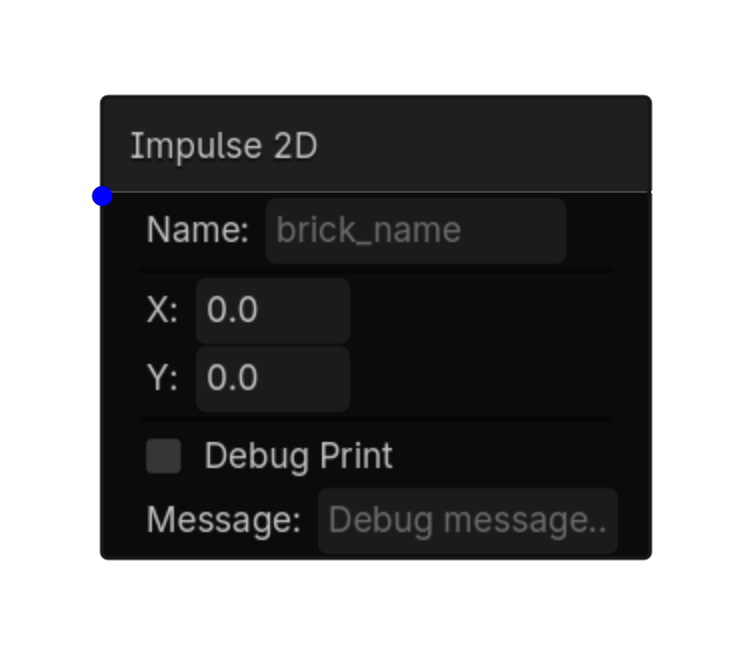
Impulse 2D

2D

Impulse 2D logic brick.

Menu Add Logic Brick → Actions → Physics

This brick exposes no configurable properties.
Using this brick

Typical uses

  • Perform the general action described above after a trigger/gate chain succeeds.
  • Reuse the brick in multiple states or chains with different option values.
  • Pair it with an appropriate trigger to control when the action occurs.

Example chain

Choose a trigger Gate Impulse 2D
Tip Test the action with the simplest possible trigger first, then add variables, timing, or additional conditions.
Common mistake A continuously active trigger may run this action every frame. Use a one-shot condition when the action should happen only once.
Impulse 2D screenshot placeholder
Impulse 2D screenshot
action • 2d

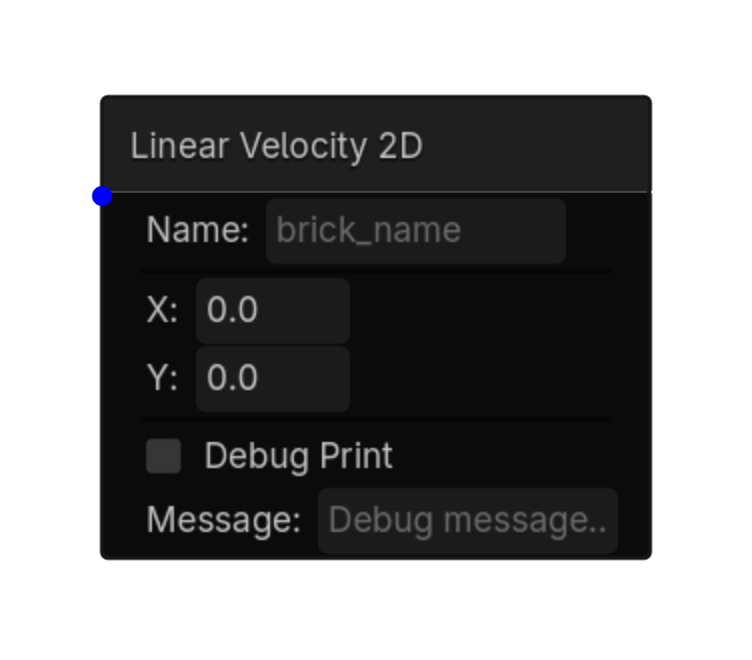
Linear Velocity 2D

2D

Linear Velocity 2D logic brick.

Menu Add Logic Brick → Actions → Physics

This brick exposes no configurable properties.
Using this brick

Typical uses

  • Perform the general action described above after a trigger/gate chain succeeds.
  • Reuse the brick in multiple states or chains with different option values.
  • Pair it with an appropriate trigger to control when the action occurs.

Example chain

Choose a trigger Gate Linear Velocity 2D
Tip Test the action with the simplest possible trigger first, then add variables, timing, or additional conditions.
Common mistake A continuously active trigger may run this action every frame. Use a one-shot condition when the action should happen only once.
Linear Velocity 2D screenshot placeholder
Linear Velocity 2D screenshot
action • 2d

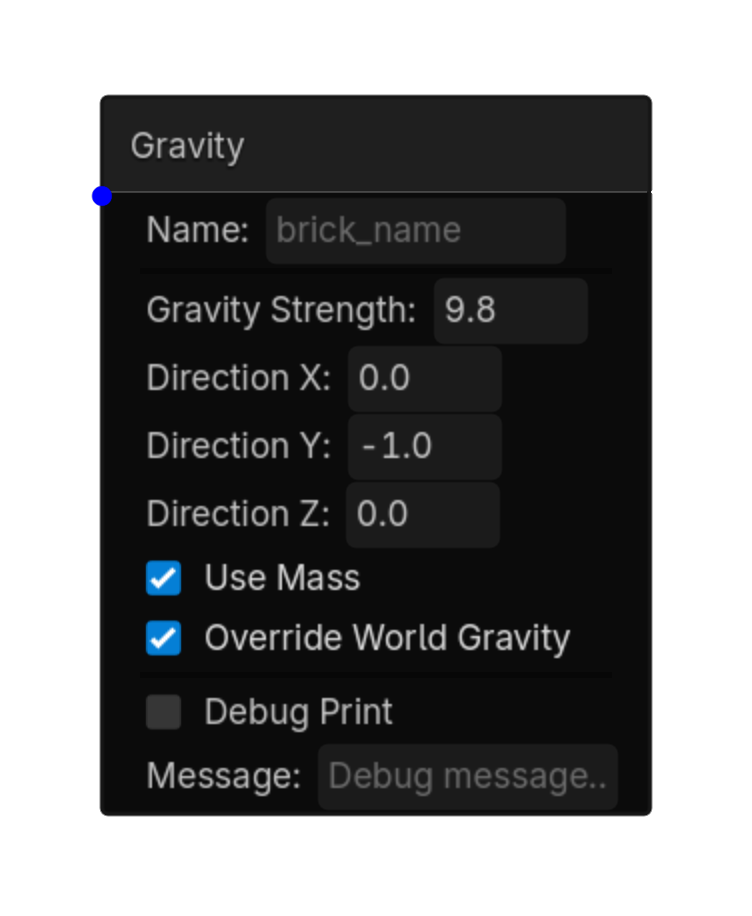
Gravity

2D

Applies directional gravity to a RigidBody2D using the project gravity as a strength multiplier.

MenuAdd Logic Brick → Actions → Physics

Options

PropertyDetails
strengthGravity multiplier: 1 is project gravity, 2 is double, and 0.5 is half.
direction_x / direction_y2D gravity direction. Positive Y points down in Godot.
use_massScale force by the RigidBody2D mass.
override_world_gravityDisable the body’s normal project-gravity contribution.
reset_velocity_on_direction_changeClear existing momentum when the gravity direction changes.
Using this brick

Typical uses

  • Run Gravity after a trigger and gate chain succeeds.
  • Combine it with states to enable the behavior only during the appropriate gameplay mode.

Example chain

TriggerGateGravity
TipFor upward gravity, use X = 0 and Y = -1.
Common mistakeStrength is a multiplier, not a raw pixel acceleration. A value of 10 means ten times project gravity.
Gravity action screenshot
Gravity screenshot
action • 2d

Collisions

2D

Enables or disables 2D collision shapes, collision layer or mask bits, and Area2D monitoring.

MenuAdd Logic Brick → Actions → Physics

Options

PropertyDetails
actionDisable Shape, Enable Shape, Set Layer Bit, Set Mask Bit, Enable Monitoring, or Disable Monitoring.
target_nodeCollisionShape2D, CollisionPolygon2D, CollisionObject2D, or Area2D target.
layer_valueCollision layer or mask bit from 1 through 32.
bit_enabledWhether the selected layer or mask bit is enabled.
Using this brick

Typical uses

  • Run Collisions after a trigger and gate chain succeeds.
  • Combine it with states to enable the behavior only during the appropriate gameplay mode.

Example chain

TriggerGateCollisions
TipUse deferred collision-shape changes when toggling during a physics callback; the action handles shape changes safely.
Common mistakeCollision layers and masks are one-based in the brick UI but converted to Godot’s zero-based bit index internally.
Collisions action screenshot
Collisions screenshot
AVAILABLE IN THIS WORKFLOW

General

Actions available in the 2D workflow.

action • 2d

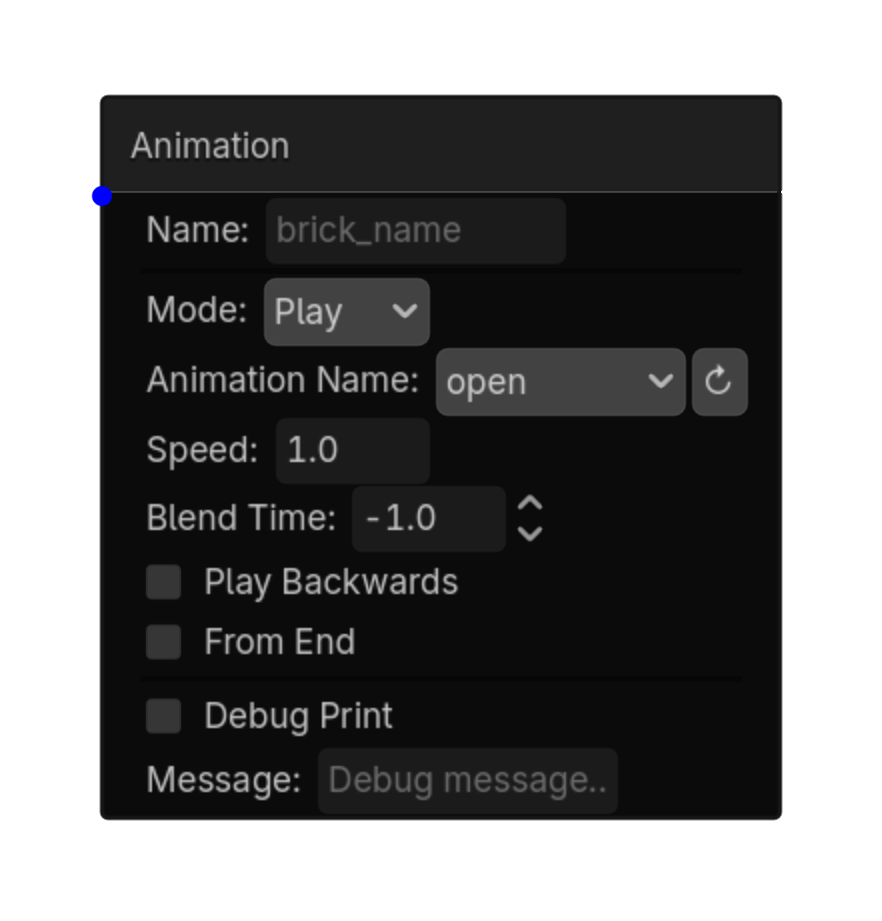
Animation

2D

Play, stop, or control animations by name.\nAutomatically finds the AnimationPlayer that owns the animation.\nWorks with AnimationPlayers nested at any depth.

Menu Add Logic Brick → Actions → General

Options

Node Properties Details
mode Mode
Choices: Play,Stop,Pause,Queue
Default: play
animation_name Animation Name
Choices: __ANIMATION_LIST__
speed Speed
Default: 1.0
blend_time Blend Time
Default: -1.0
play_backwards Play Backwards
Default: false
from_end From End
Default: false
Using this brick

Typical uses

  • Perform the general action described above after a trigger/gate chain succeeds.
  • Reuse the brick in multiple states or chains with different option values.
  • Pair it with an appropriate trigger to control when the action occurs.

Example chain

Choose a trigger Gate Animation
Tip Test the action with the simplest possible trigger first, then add variables, timing, or additional conditions.
Common mistake A continuously active trigger may run this action every frame. Use a one-shot condition when the action should happen only once.
Animation screenshot placeholder
Animation screenshot
action • 2d

Tween

2D

Animates any property on self or on a node found by name anywhere in the current scene tree.

Menu Add Logic Brick → Actions → General

Options

Node Properties Details
target_mode Target Mode
Choices: Self,Node
Default: self
target_node_name Target Node Name
node_name_source Node Name Source
Choices: Literal Node Name,String Variable
Default: literal
export_node_name Export Node Name
Default: false
property Node Properties
Default: modulate:a
target_value Target Value
Default: 0.0
duration Duration
Default: 0.5
trans_type Trans Type
Choices: Linear,Sine,Quint,Quart,Quad,Expo,Elastic,Bounce,Back,Spring,Circular,Cubic
Default: linear
ease_type Ease Type
Choices: In,Out,In Out,Out In
Default: in_out
loop Loop
Default: false
Using this brick

Typical uses

  • Perform the general action described above after a trigger/gate chain succeeds.
  • Reuse the brick in multiple states or chains with different option values.
  • Target a specific node by configuring the node field before testing the chain.

Example chain

Choose a trigger Gate Tween
Tip Confirm the target node name and node type before troubleshooting the rest of the chain.
Common mistake Timing options change how long the action takes; avoid retriggering the same transition every frame unless that behavior is intentional.
Tween screenshot placeholder
Tween screenshot